Image to table — invoices, receipts, screenshots
Turn an invoice, a scan or a screenshot of somebody's report into a table. Three steps: upload the image, choose the target table, confirm. Needs your own AI key, and the image goes to the model provider you chose.
This is a paid capability and needs an API key of your own. Without a license the request comes back as "AI plugins are a paid feature".
What it can read
- Printed or photographed tables: quotes, statements, grade sheets, stock lists
- Receipts and documents: invoices, tickets, ID cards, bank cards, license plates — the Tools page calls this Convert Image to Table
- Tables inside a screenshot
The recognition is done by the model you configured in Desktop settings. Without a key the feature is unavailable.
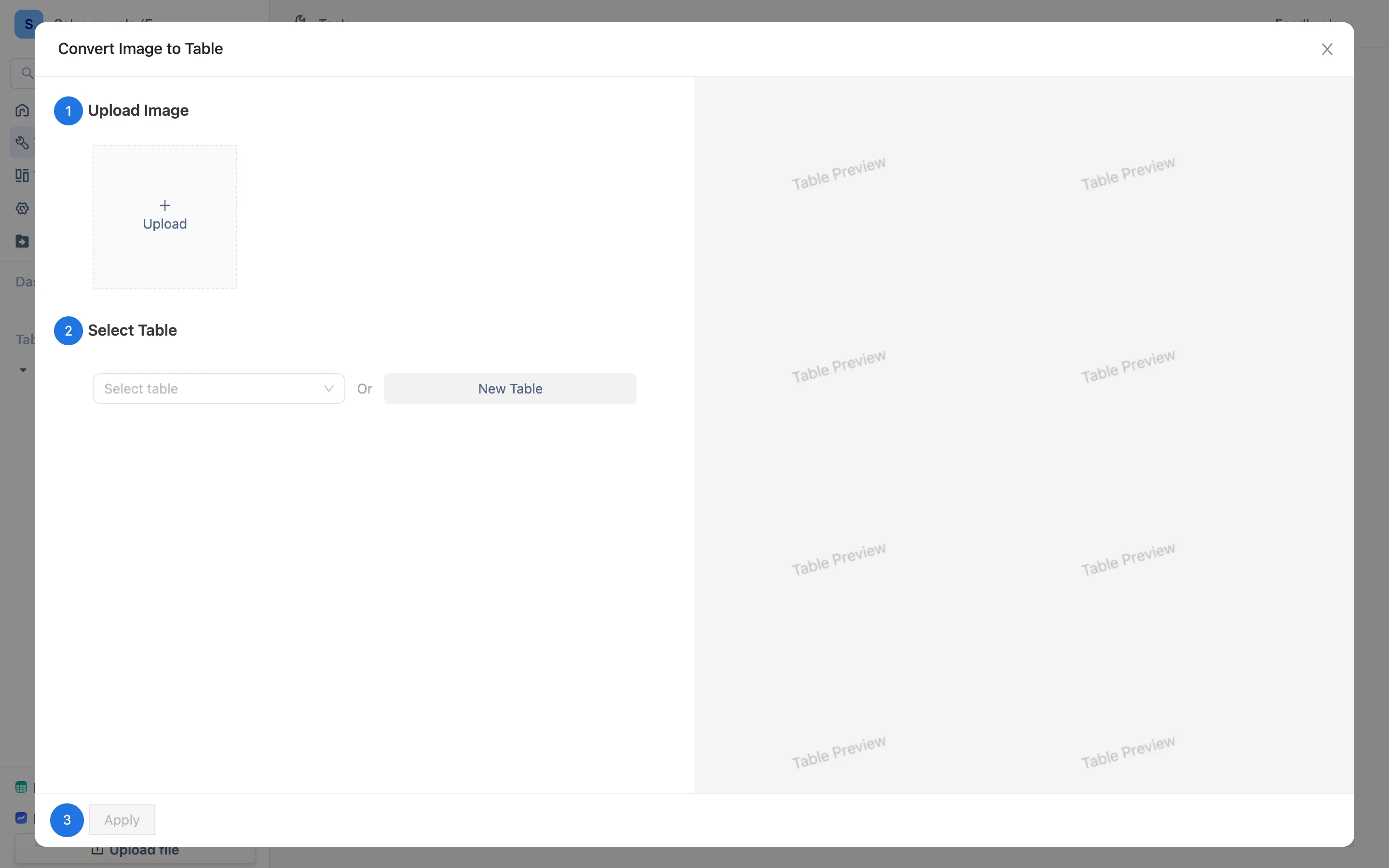
Two ways in
- Tools → Convert Image to Table: the result becomes a new table.
- Import → From image inside a table: the result is appended to that table, columns matched by name.
Three steps
- Upload the image — choose a file or drop one in. One at a time.
- Select Table — where the result should land (new or existing).
- OK — after recognition you land in the same preview as a file import, can tidy it up, then finish.
Before you rely on it
The image is sent as-is to the model provider you configured. It does not pass through our servers, but it does leave your computer. For contracts, identity documents and anything else that cannot go to a third party, type it in by hand. See what AI sends out.
- Recognition is not perfect. Check the numbers, especially the plausible-looking ones — a model's confident mistakes are the digits that look alike.
- One image, one pass. For a scan that spans pages, recognize each page and stitch them with Merge.
- Images are billed by your provider and cost more than text requests. A few dozen is small change; work out the cost before doing thousands.
- Handwriting, skew and blur all hurt the hit rate noticeably. Shoot it square when you can.
What to do with the result
It is an ordinary table: add formula columns to clean it, and set the field types — recognized amounts often arrive as text, and text does not sum. If you scan the same kind of document every month, set a primary key on the invoice number so re-recognizing the same document updates the row instead of adding one.