Paste to import
Copy a block from Excel, a web page or an email and paste it straight into the Import window. The same preview and tidy-up tools as a file import — right for small batches that are not worth saving as a file.
When paste is the right tool
Someone sends thirty rows in an email; a web page has a table you want; a colleague drops a block into chat. Saving that as a file first and then uploading it is two pointless steps. Paste goes straight in.
How
- Copy the block at the source — in Excel select the range and copy; on a web page select the table and copy.
- Open the Import window (Upload file on the home page, or Import → Upload file in a table).
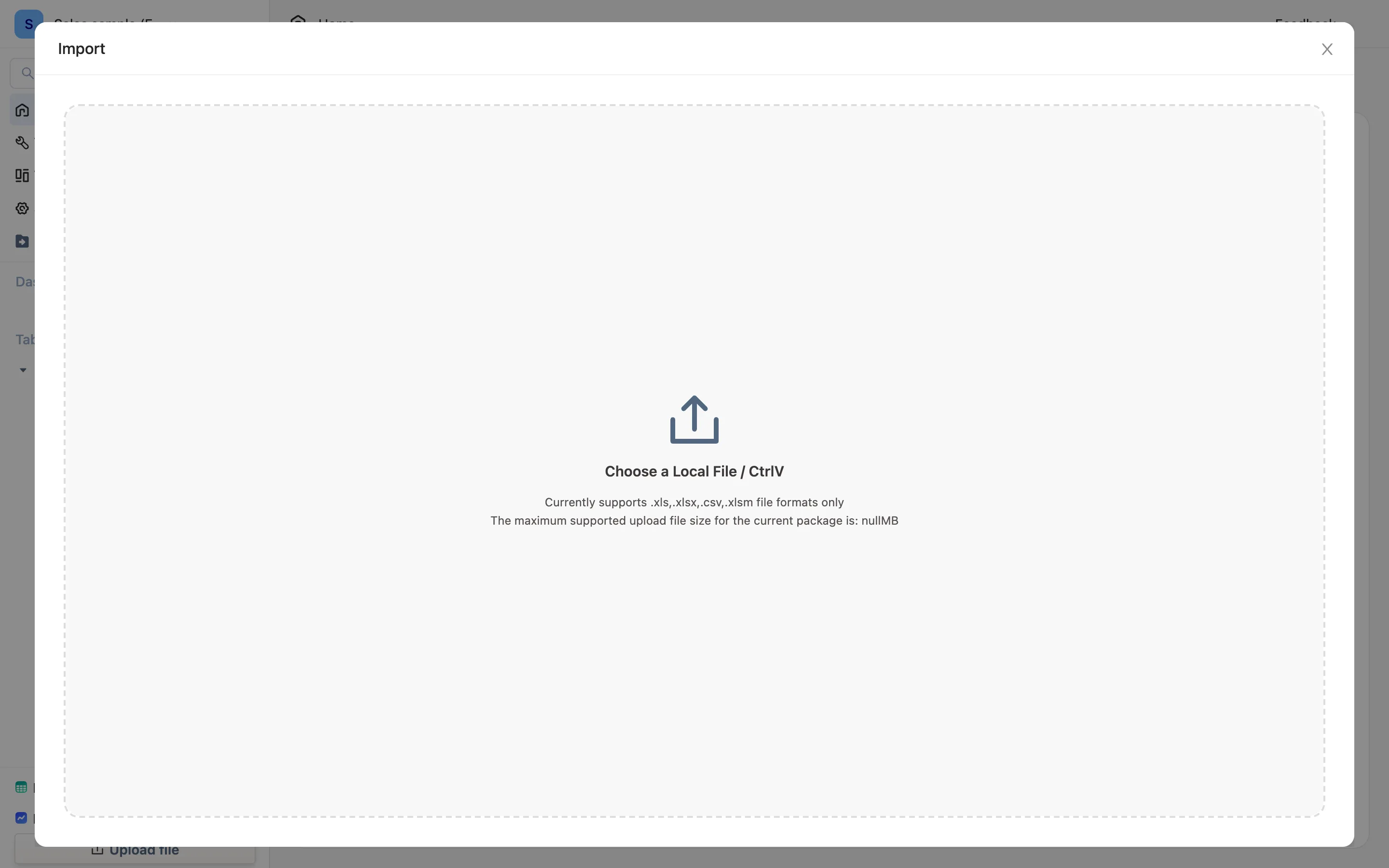
- Do not choose a file — press Cmd+V (Ctrl+V on Windows). The upload area's own label says Choose a Local File / CtrlV. What was on the clipboard appears in the preview.
From there it is identical to a file import: the same tidy-up tools, the same Append Data / Replace Existing Data choice, the same column matching by name. See Upload Excel and CSV.
What comes across
- Values, and only values. Formulas paste as their results; formatting, colors and merged cells do not survive.
- The first row becomes the header. Include the header row when you copy, or the first data row is used as one.
- Tabs and newlines are the separators. That is what Excel and most web tables put on the clipboard, which is why this works with no configuration.
When it does not work
If the app says Failed to read clipboard data, please try again, the clipboard did not hold a table:
- Copying a picture of a table (a screenshot) puts an image on the clipboard, not text. Use image to table instead.
- Some applications only offer their own private format. Paste into a plain-text editor first to see what you actually copied.
- On macOS an app can hold the clipboard while it is busy. Copy again and retry.
Small batches only
Paste is bounded by whatever your system will put on a clipboard, and the preview renders only the first slice of it. For thousands of rows, save the file and upload it — same result, none of the clipboard's limits. For data that arrives on a schedule, neither is the answer: use a data connection and stop moving it by hand.