Manual entry — Add Row, forms and the import template
Not all data comes from a file. Enter it one row at a time with Add Row or a form view; to have someone else fill in your columns, send them the empty Excel that Template downloads.
Add Row
Add Row in the table toolbar has three options:
| Option | What it does |
|---|---|
| Add empty row | Inserts a blank row at the top of the table for you to type into |
| AI Generate new row | Describe a row in a sentence and let AI fill it out in the shape of the existing columns (needs an API key, and it is a paid feature) |
| Submit new row | Opens a form generated from the columns; fill it in and submit |
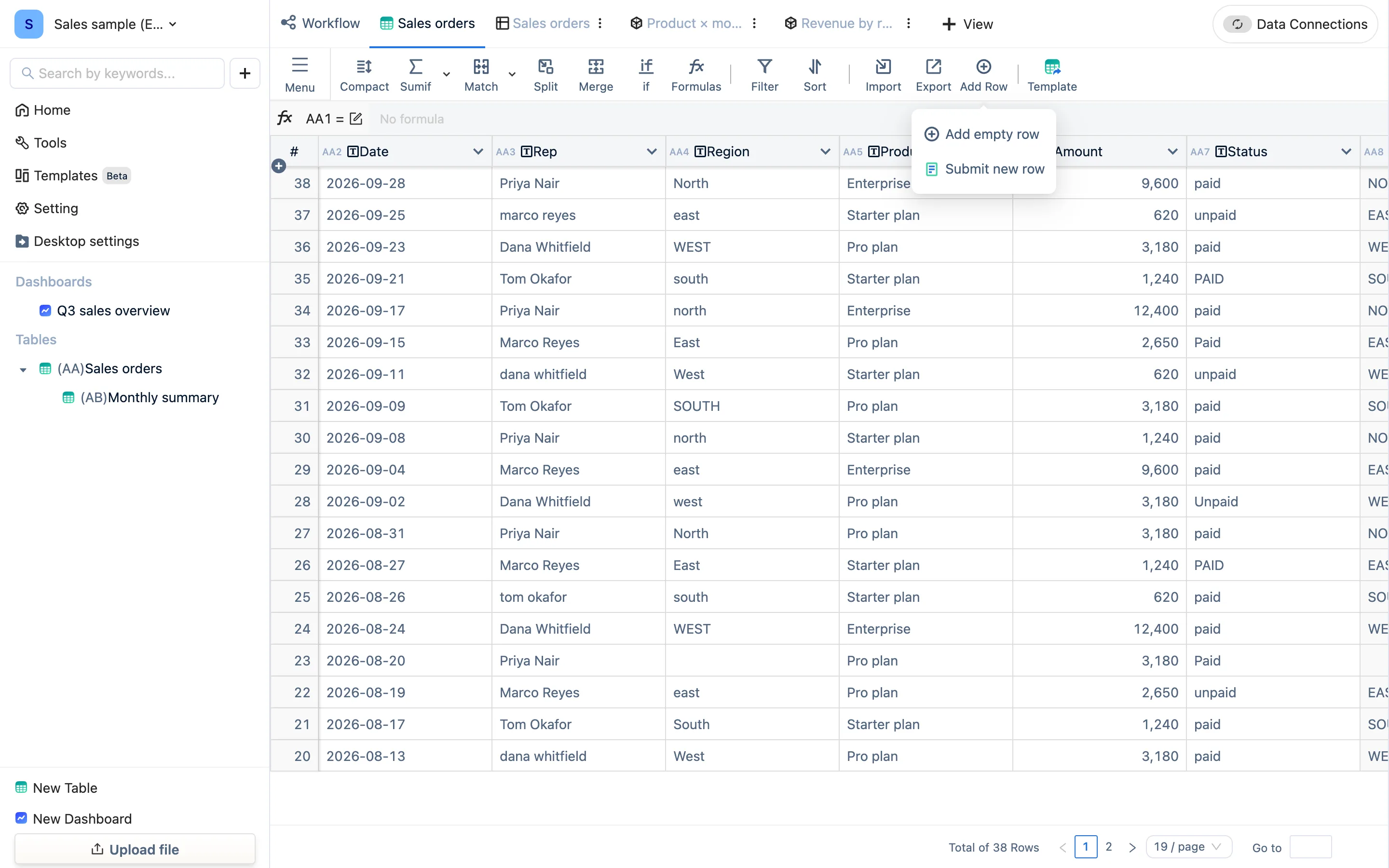
New rows always appear at the top — the newest row is the first row. Formula columns need nothing typed; they calculate after you submit.
To edit in place, double-click a cell and press Enter. Formula columns are read-only. Right-click a row for Delete Row and Filter this row; select several for Delete selected rows.
Form views
For entering data repeatedly and over time, give the table a form view: + View → Form in the tab bar. The form is generated from the columns, individual fields can be marked Required, and after submitting it shows a Submit Result and the fields listed under Display following fields.
A form view can also go on a dashboard, and combined with the dashboard's Insert data action it becomes a small entry page. The team edition can publish a form as a public link so people without accounts can fill it in.
Template — let someone else fill in your columns
Template in the toolbar downloads an Excel containing the headers and nothing else. Send it to a colleague or a customer, have them fill it in and send it back, then Import → Upload file → Append Data: the column names match exactly, so nothing can map to the wrong place.
This is also safer than sending the whole table out and taking it back: they never see the existing data, and you are not relying on them leaving the column names alone.
Field types decide what can be entered
Field Type lives in the header dropdown. It matters for entry because:
- Dropdown turns the cell into a picker — no more three spellings of the same status.
- Date validates what is typed and makes date filters work later.
- Checkbox is a tick rather than the words yes and no.
- Numeric is what makes sums possible; an amount left as text sums to nothing.
Setting the types before people start typing saves the cleaning pass afterwards. The details are in Field types.