Merge and Split — stacking tables and pulling rows out
Merge stacks several tables of the same shape into one; Split pulls the rows matching a condition into a new table. Both produce live tables that follow their sources. Plus when to use Split rather than a view filter.
Merge — stacking by row
The situation: three tables of orders, one per year, and you want one combined table; or one table per store, and you want the company's.
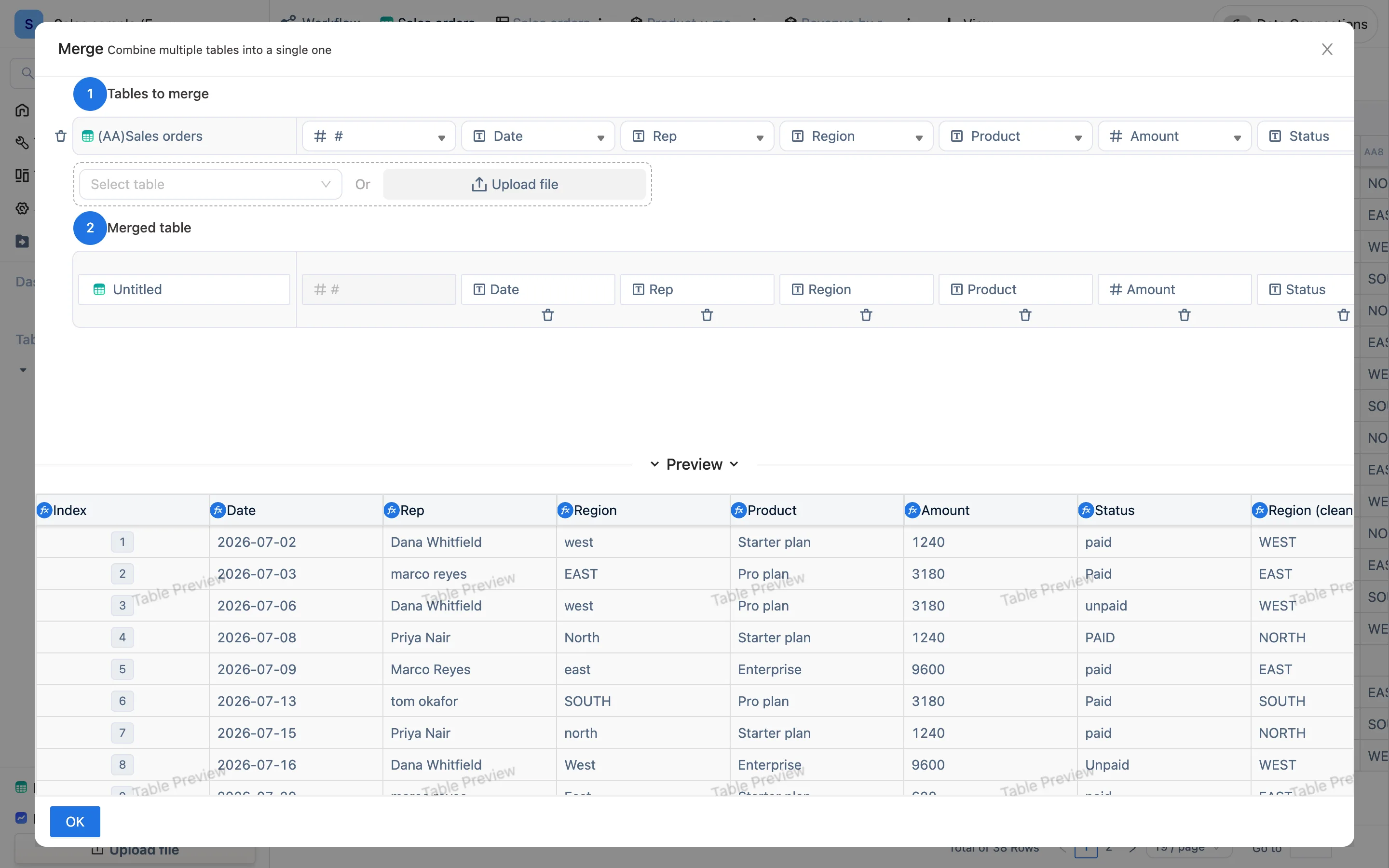
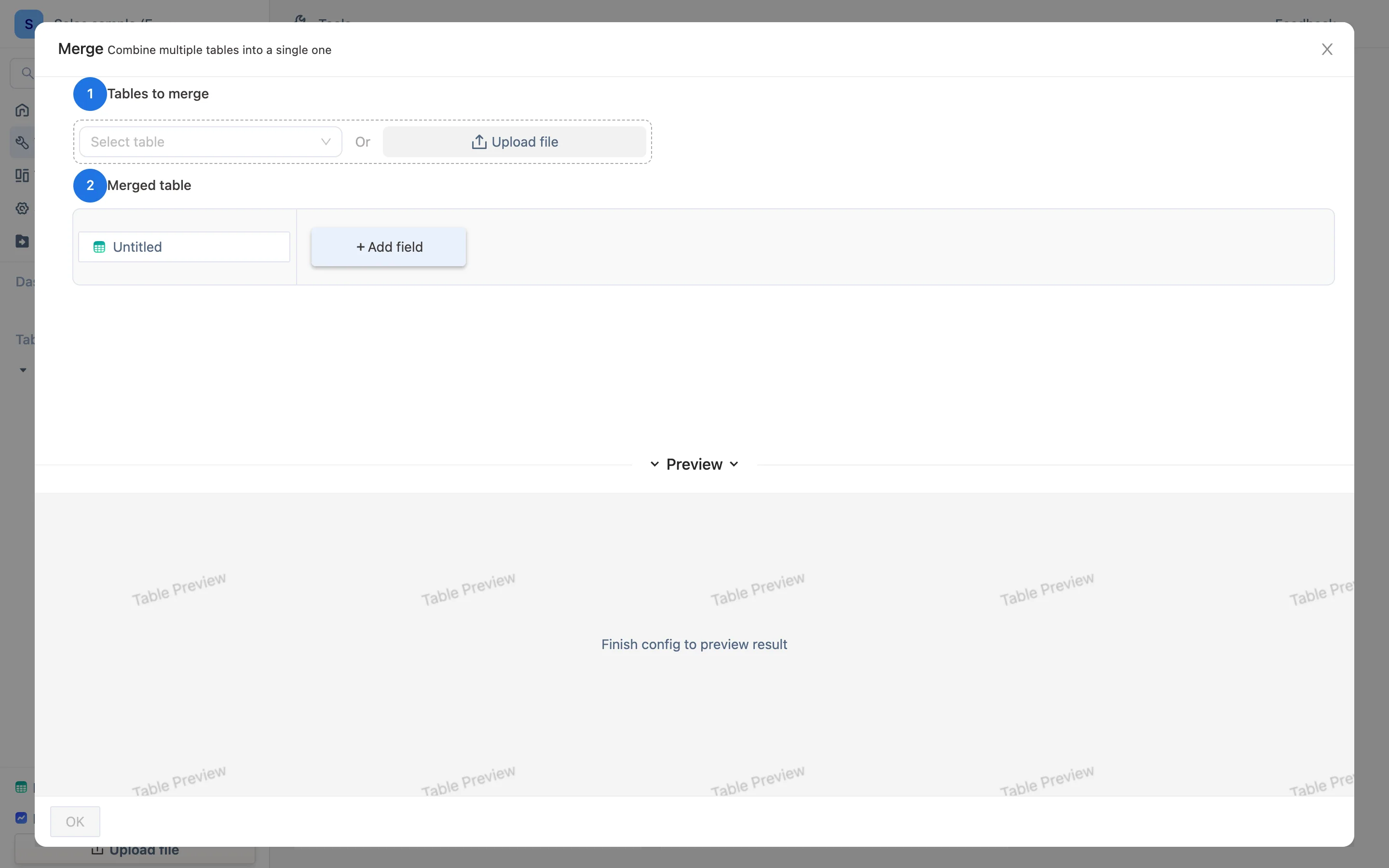
Merge in the toolbar (or Merge Table on the Tools page, or Merge data in the menu):
- Merge tables — the current table is already in the list; Select table adds another, and Upload file brings in an Excel that was never imported.
- Result table — lists the result's columns. It defaults to the current table's columns; Add field says which column of each source maps to which column of the result, which is how mismatched column names get aligned.
- Preview → Confirm.
The result is a new table where each row came from one of the sources. Add rows to a source and the result grows.
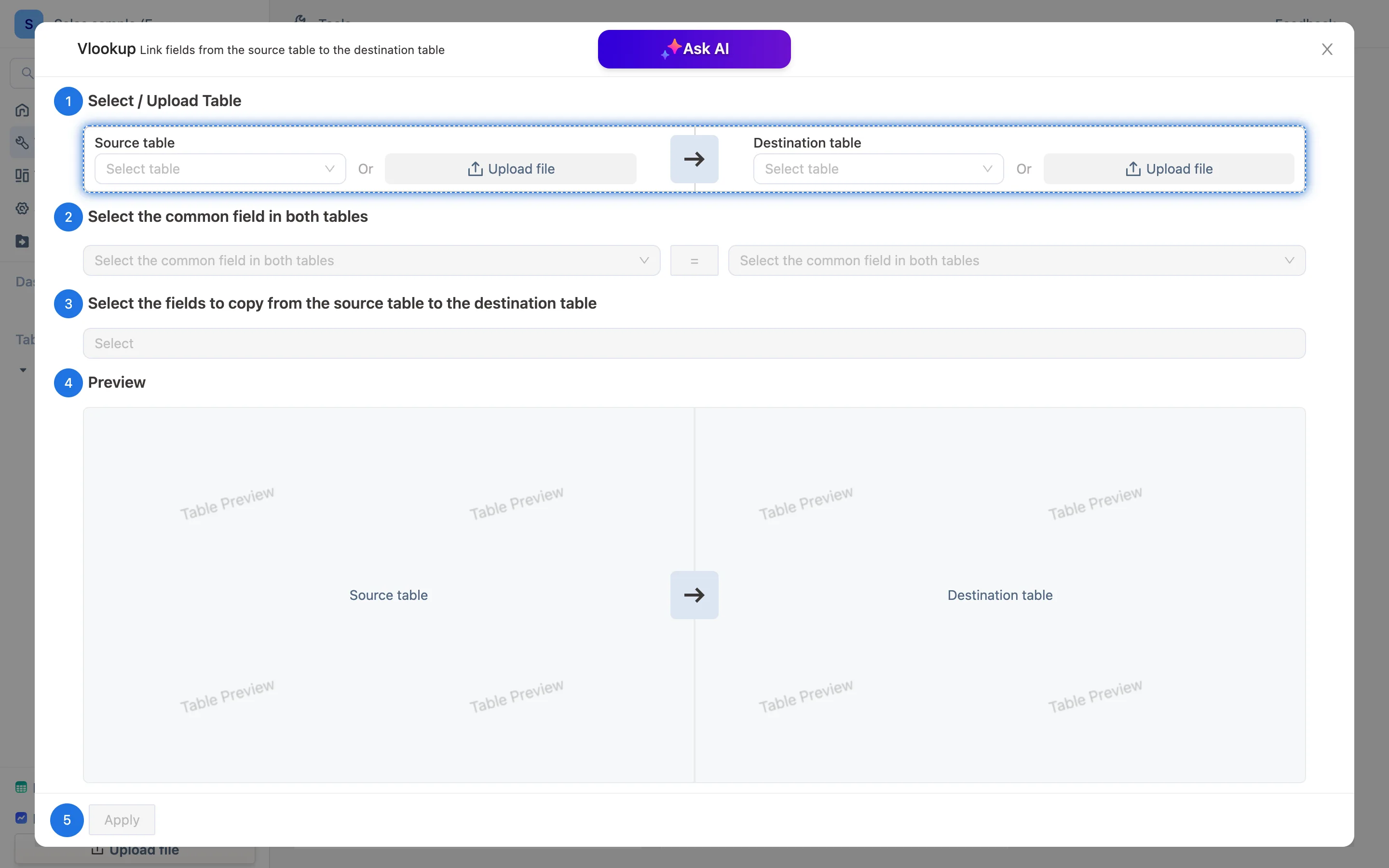
The underlying functions are union / convertunion, usable by hand too — see the function reference.
Split — pulling rows out by condition
The situation: pull the orders for one carrier into their own table; break a grade sheet up by class; give finance only the unpaid rows.
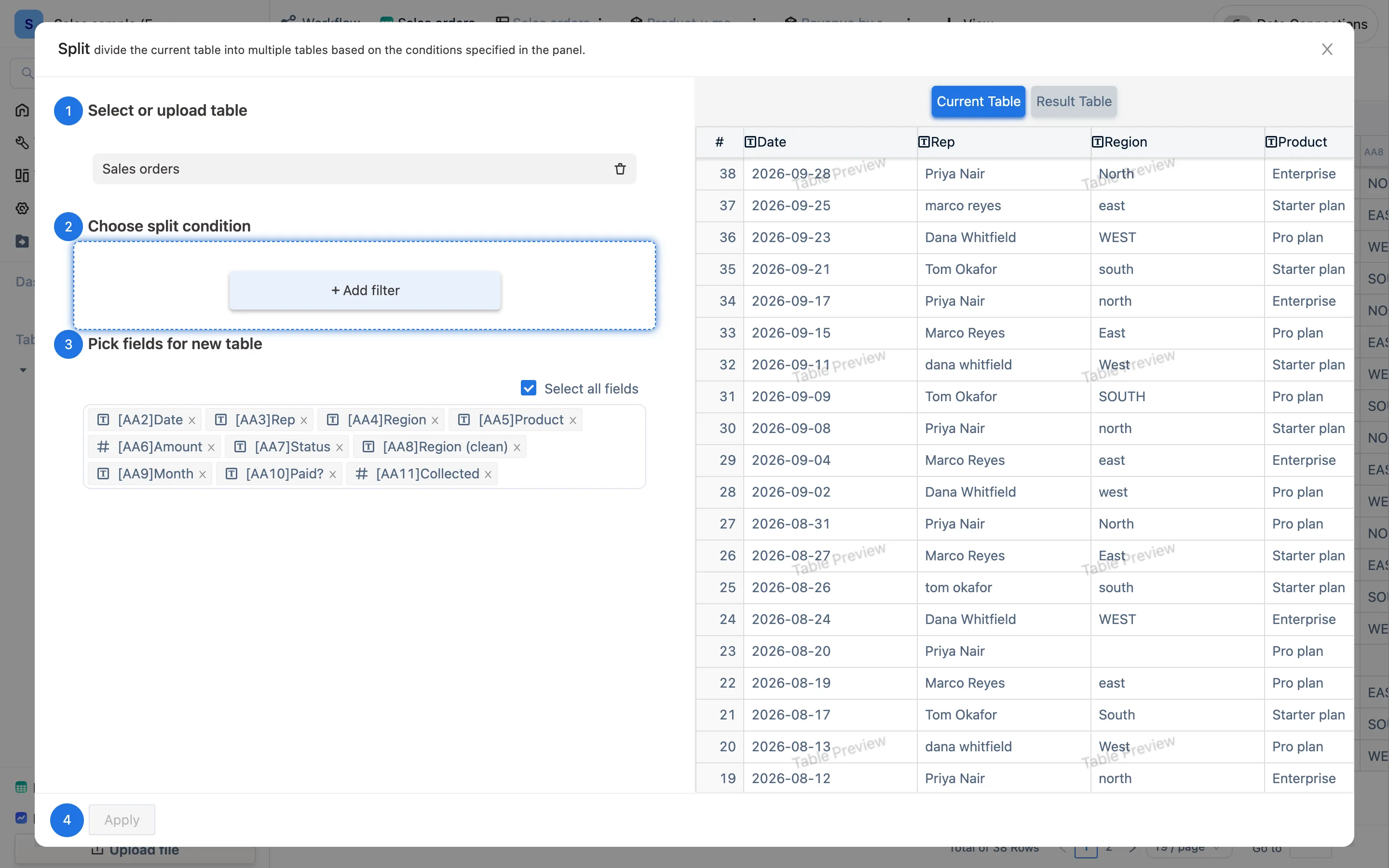
Split in the toolbar (or Split Table on the Tools page):
- Choose or upload the table to split — the current one by default.
- When these conditions are met — Add filter, e.g.
Region = East,Amount > 1000. Several conditions can be combined. - Extract these columns into the new table — all of them, or a subset. A table you are handing to someone else rarely needs the cost column.
- Run.
The right-hand pane previews the current table and the result live. The new table carries the split formula (convertselect), so it follows the source as the source changes — and empties if the source is deleted.
Split, or a view filter?
Two ways to "see only part of it":
- A view filter — add a worksheet view to the same table with a filter of Region = East. No new table, and it is the lighter option.
- Split — genuinely produces a new table. Use it when you need to add columns to that subset, summarize it, export it on its own or share it on its own.
To look, use a view. To carry on calculating, use Split.
Splitting by category in bulk
Tools → Split Table can also split once per distinct value of a column: choose to split by column, choose Store, and you get one table per store. Fifty stores is still one operation.