The Tools page
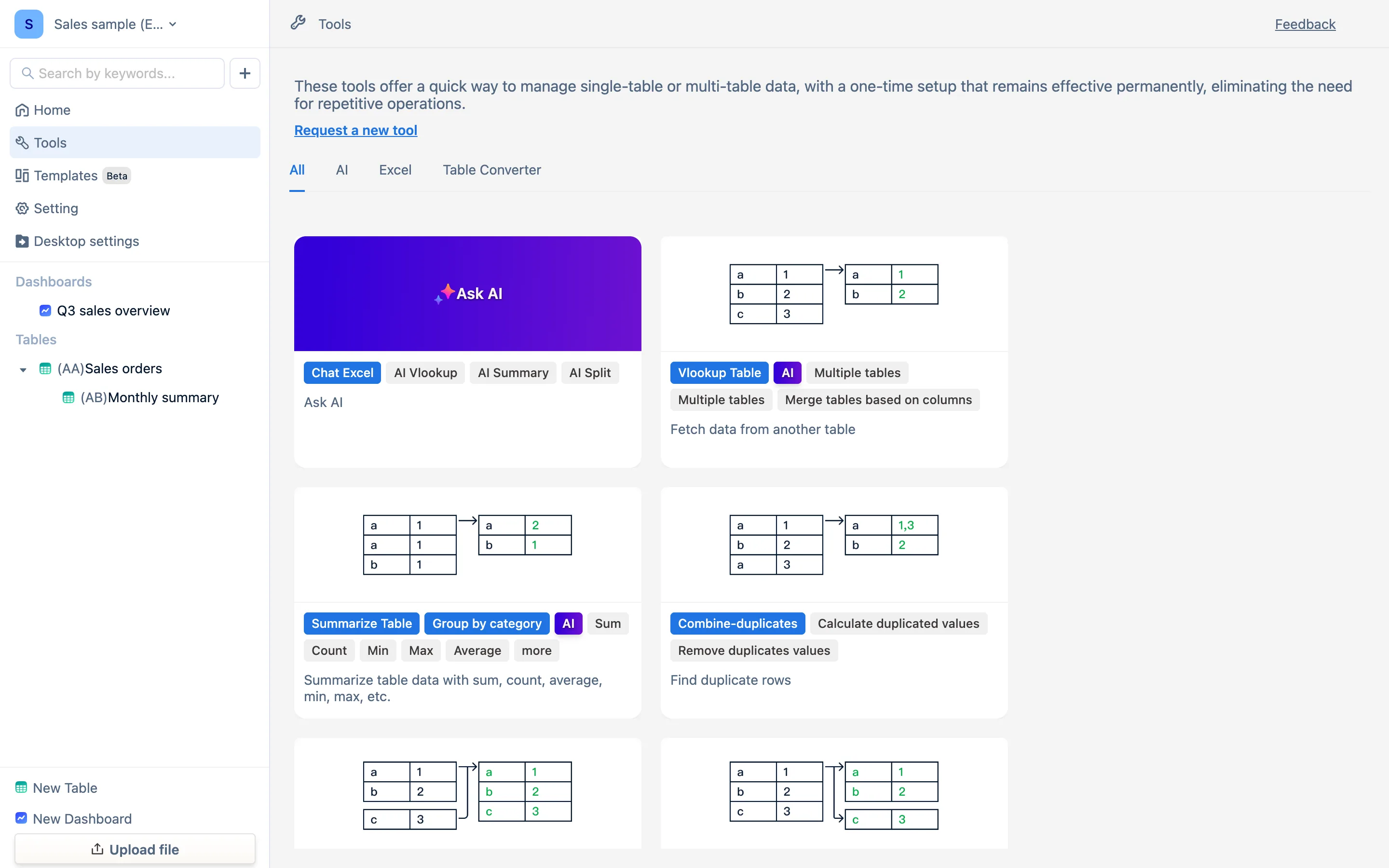
The same capabilities as the toolbar panels, entered from the other end — pick the table (or upload a file) first. Every card, what it does, and where it is documented in full.
How it relates to the panels in a table
Two doors into the same capabilities. The toolbar panels default to the current table; the Tools page wizards ask you to pick a table or upload a file first, which suits having two Excel files you want to compare before importing either of them. What comes out is the same tables and formula columns, editable afterwards.
The categories
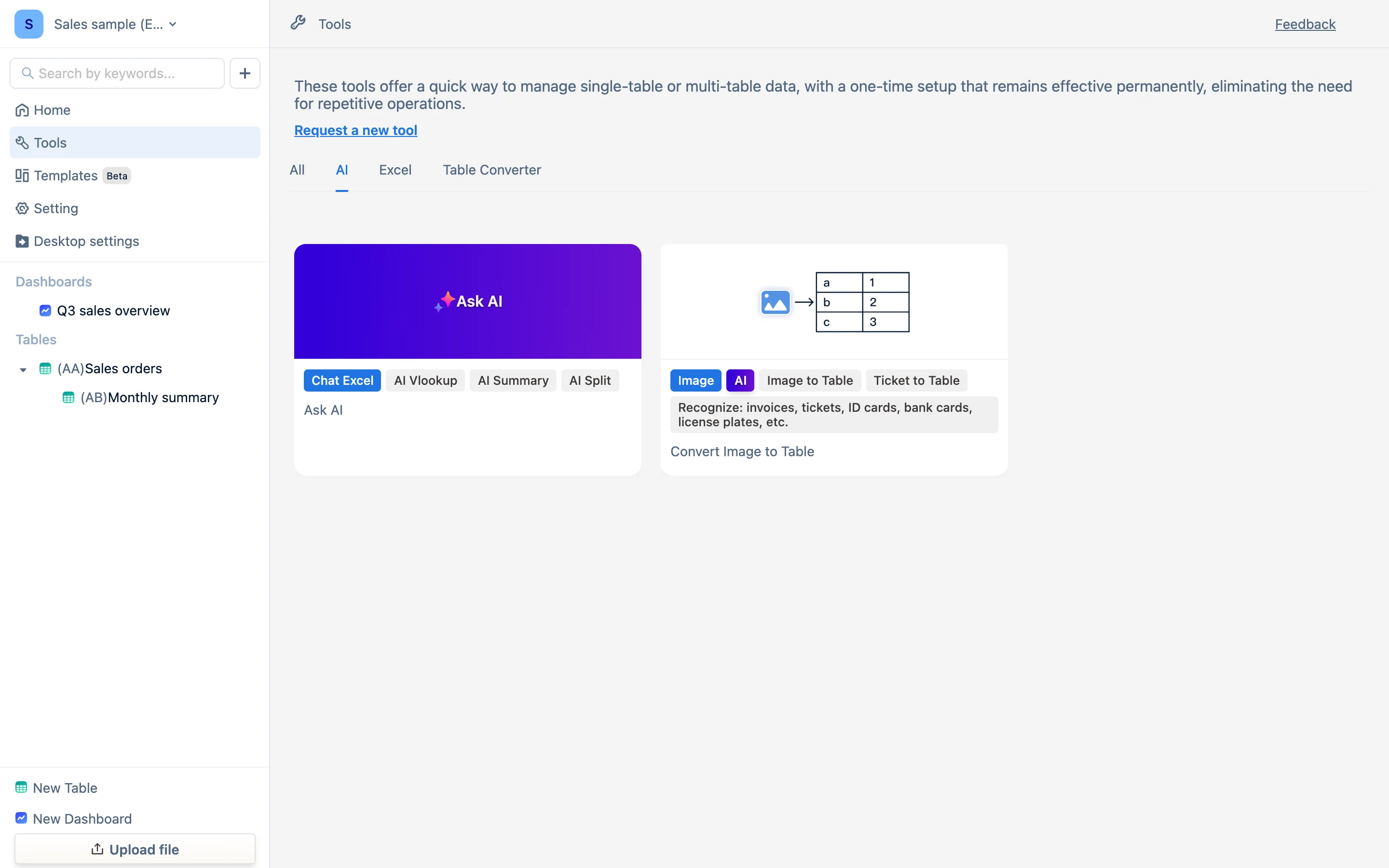
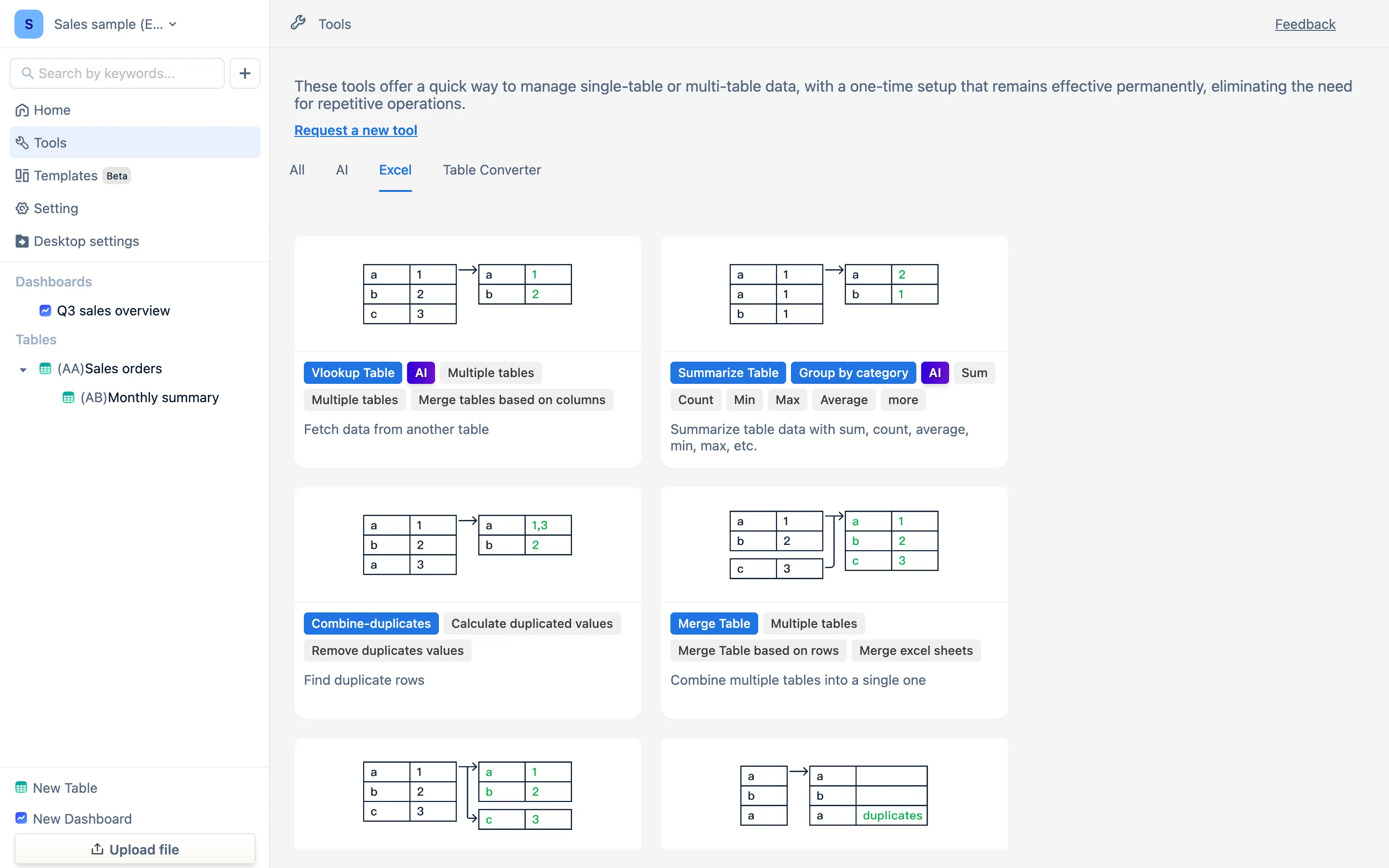
The tabs across the top — All, AI, Excel, Table Converter — filter the cards.
| Card | What it does | Documented in |
|---|---|---|
| Ask AI | AI processing of a spreadsheet: summarize, match across tables, split, and chat that builds a comparison table | AI |
| Vlookup | Find target data in another table quickly, and merge tables by column | Match |
| Summarize Table | Grouped totals: monthly revenue, headcount per department, class averages | Summarize |
| Combine-duplicates | Collapse several rows for one thing into one, joining or aggregating the rest | Duplicates |
| Merge Table | Stack tables by row, combine several workbooks | Merge and Split |
| Split Table | Split into smaller tables by condition or by a column's values | Same page |
| Find duplicate rows | Mark duplicate rows, or extract the unique ones | Duplicates |
| Date & Time | Pull out year-month, week and quarter; split date from time | Dates and times |
| Convert Image to Table | Invoices, tickets, ID cards, bank cards, license plates | Image to table |
| Json to Table | A JSON file becomes a table | JSON to table |
| Cross-table lookup | Cross-table Sumif / Countif: a total or a count fetched from another table by condition | Match |
The shape every wizard shares
- Choose or upload a table — from the workspace, or Upload file to import one on the spot.
- Pick columns and set conditions — follow the numbered steps; the right-hand pane previews the result table live once the configuration is complete.
- Run / OK — a new table or column is created and you land on it.
The Request a new tool link at the top is where to tell us what is missing.