Desktop settings, at a glance
Desktop settings is the panel the desktop app has and the browser does not — License, AI, Privacy & diagnostics, Data backup and About. Four ways in, and how it differs from the Setting entry in the sidebar.
Opening it
Four entry points, one panel:
- Desktop settings in the left sidebar, under Setting
- Cmd+, on macOS, Ctrl+, on Windows
- The workspace avatar at the top left → Desktop settings at the bottom of the drawer — not in macOS 0.0.9, where that drawer ends at Language and Log Out; the entry was attached to a component that never rendered, and is fixed in the next release. The other three work today
- The license badge at the bottom left: on a free license it reads Free · upgrade to Pro and opens the upgrade dialog (which has Enter your license key →); once activated it reads Pro and takes you straight to the License tab
Setting in the sidebar is workspace settings — the workspace name, its members. Backups, licensing and the AI key all live under Desktop settings.
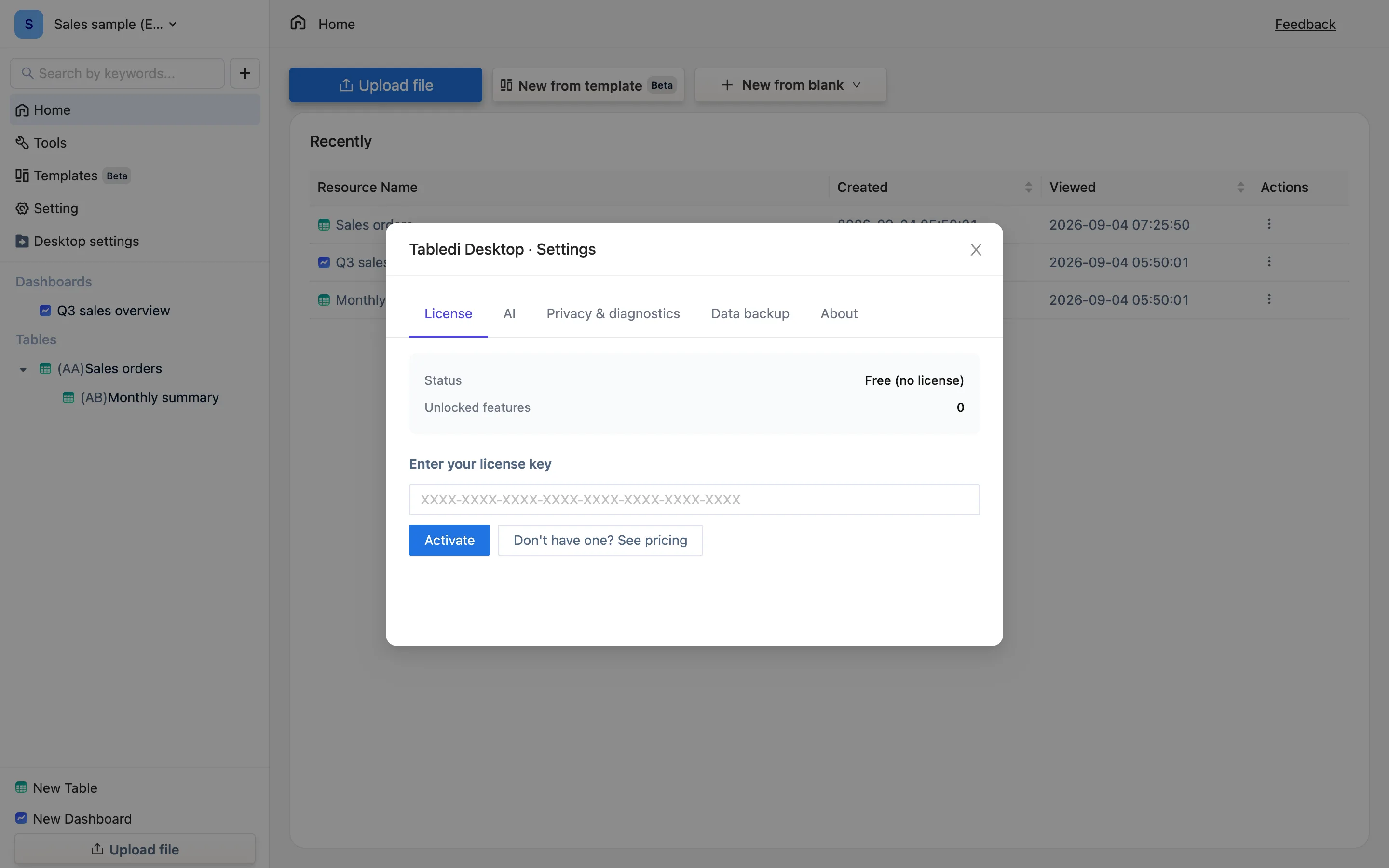
The five tabs
| Tab | What's in it | More |
|---|---|---|
| License | Status, email, plan, expiry, unlocked features; entering a key; your key; deactivating this computer | License |
| AI | Your own API key, endpoint and model; save or remove the key | Bring your own API key |
| Privacy & diagnostics | The anonymous crash-report switch | Privacy and diagnostics |
| Data backup | Export a .tdbk; restore from one |
Backups |
| About | Version, last checked, check for updates, download an update | About and updates |
The panel is titled Tabledi Desktop · Settings — the application itself is called Tabledi.
Desktop-only
These settings rely on things only a desktop application can do: read and write local files, manage a license, restart the engine. Open the team edition in a browser and they are not there; the equivalent functions come from the team edition's accounts and its server.
Two other places called "settings"
- Language — the workspace avatar at the top left → Language at the bottom of the drawer. See Language.
- Workspace settings — Setting in the sidebar: the workspace name, and a members tab used by the team edition.