Text functions
Case, trimming, slicing, joining, find and replace, encoding conversion — every function for tidying a text column.
Functions for text columns. The four you will use most: trim to strip spacing, upper / lower to normalize case, left / right / mid to slice, concat to join. The sample workspace's Region (clean) column is exactly upper(trim(AA4)).
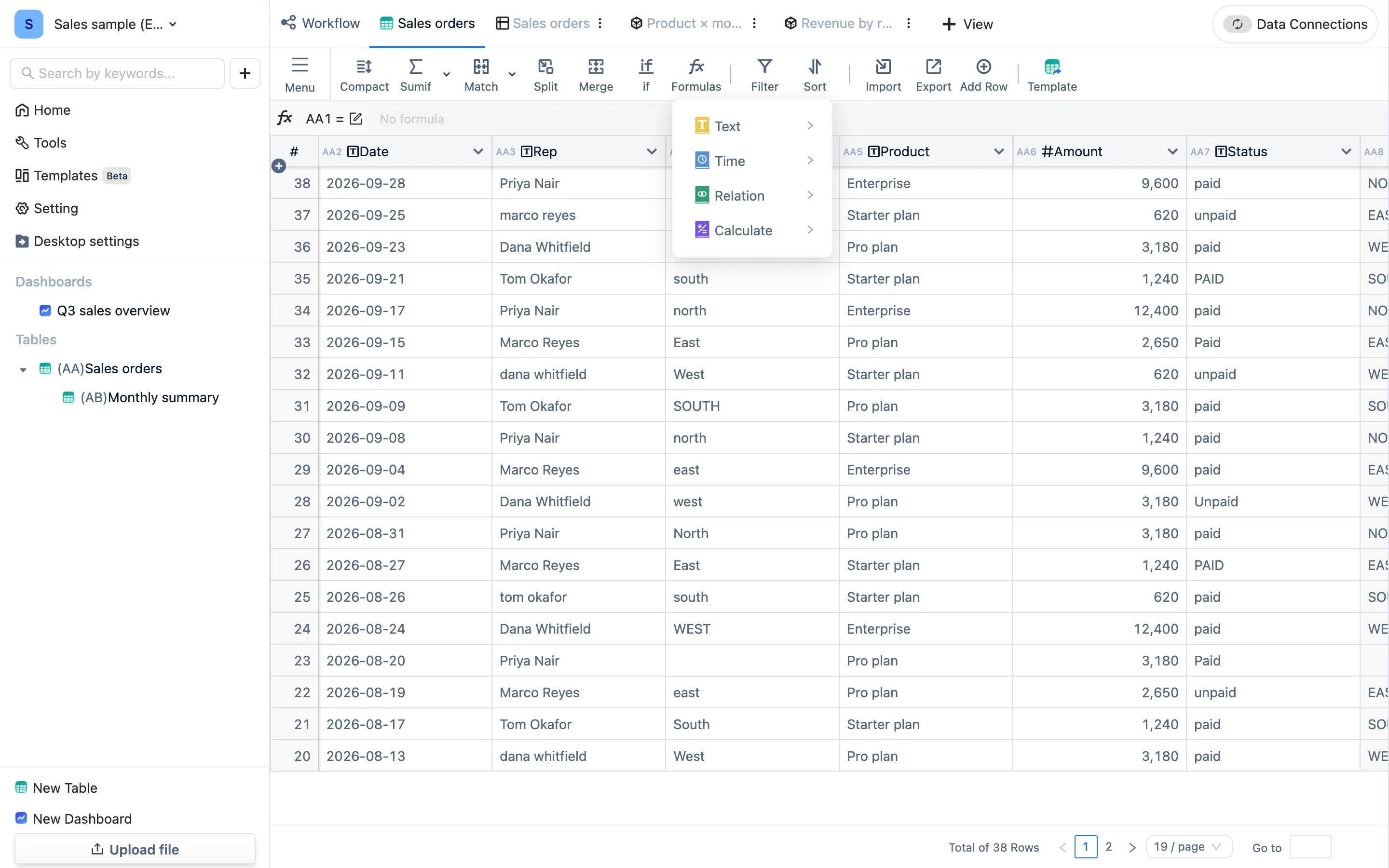
Conventions: reference a column by its code (AA6); function names are case-insensitive; text goes in double quotes; conditions accept and / or. "In the result column, enter" means typing the formula into a new column's formula bar. The wording below is the same as the in-app function help.
upper
Formula Description
Converts lowercase letters in a string to uppercase.
Formula Syntax
In the result column, enter: upper("string to convert / column number")- All parameters can use data columns, i.e., the CODE at the top of each column in the table data, such as AA1
lower
Converts to lowercase letters
Formula Description
Converts uppercase letters in a string to lowercase.
Formula Syntax
In the result column, enter: lower("string to convert" / column number)- All parameters can use data columns, i.e., the CODE at the top of each column in the table data, such as AA1
trim
Formula Description
Removes whitespace characters from both sides of a string.
Formula Syntax
In the result column, enter: trim("string to process")- All parameters can use data columns, i.e., the CODE at the top of each column in the table data, such as AA1
clean
Formula Description
Removes all non-printable characters from text. Use CLEAN on text imported from other applications to remove characters that might not be printable in the current operating system.
For example, you can use CLEAN to remove some low-level computer codes that are commonly found at the beginning and end of data files and cannot be printed.
concat
Formula Description
Combines multiple strings together.
Formula Syntax
In the result column, enter: concat("string1", "connector (any)", "string2", ...)- All parameters can use data columns, i.e., the CODE at the top of each column in the table data, such as AA1
concatws
Used to combine text values or arrays into a single string
Formula Description
A text function used to combine text values or arrays into a single string.
Formula Syntax
In the result column, enter: CONCATWS(delimiter, text1, [text2], ...)Where:
delimiter: Specifies the separator when combining strings.
text1, text2, ...: Text values or arrays to be combined.
Notes:
The delimiter parameter can be any text string, but it is not optional.
Text parameters can be text values, cell references, or other functions that contain text.
The CONCATWS function can accept multiple parameters and can combine multiple text values or arrays into a single string.
If a text value to be combined is an empty string or an empty cell, the CONCATWS function will ignore it.
If the provided parameter is not a text type, the CONCATWS function will attempt to convert it to a text value.
left
Formula Description
Returns the first n characters of a string.
Formula Syntax
In the result column, enter: left("string to process / column number")- All parameters can use data columns, i.e., the CODE at the top of each column in the table data, such as AA1
right
Formula Description
Returns the last n characters of a string.
Formula Syntax
In the result column, enter: right("string to process", number of characters to return)- All parameters can use data columns, i.e., the CODE at the top of each column in the table data, such as AA1
mid
Formula Description
Returns a specific number of characters from a text string starting at the position you specify.
Formula Syntax
In the result column, enter: MID(text / column number, start position, number of characters)The MID function syntax has the following parameters:
text/column number Required. The text string containing the characters you want to extract.
start position Required. The position of the first character you want to extract in text.
The first character in text has start position 1, and so on.
If start position is greater than the length of text, MID returns "" (empty text).
If start position is less than the length of text, but start position plus number of characters exceeds the length of text, MID returns the characters up to the end of text.
number of characters Optional. Specifies the number of characters you want MID to return from text.
substring
Formula Description
Returns a specific number of characters from a text string starting at the position you specify.
This formula is similar to the MID formula
Formula Syntax
In the result column, enter: SUBSTRING(text / column number, start position, number of characters)The SUBSTRING function syntax has the following parameters:
text/column number Required. The text string containing the characters you want to extract.
start position Required. The position of the first character you want to extract in text.
The first character in text has start position 1, and so on.
If start position is greater than the length of text, MID returns "" (empty text).
If start position is less than the length of text, but start position plus number of characters exceeds the length of text, MID returns the characters up to the end of text.
number of characters Optional. Specifies the number of characters you want MID to return from text.
substringIndex
Formula Description
Returns a substring of a string before a specified number of occurrences of a delimiter.
Formula Syntax
In the result column, enter: SUBSTRINGINDEX(str, delimiter, number)str: The original string to be substring;
delimiter: The delimiter;
number: Can be positive or negative.
If it's positive, count from left to right, return the left substring of the number-th delimiter
If it's negative, count from right to left, return the right substring of the number-th delimiter
pick
Formula Description
Splits a string using a separator and extracts the nth segment.
Formula Syntax
In the result column, enter: pick("string", "separator", which one to choose)- All parameters can use data columns, i.e., the CODE at the top of each column in the table data, such as AA1
len
Returns the number of characters in a text string
Formula Description
LEN returns the number of characters in a text string.
Formula Syntax
Input in result column: LEN(text / column number)The LEN function syntax has the following parameters:
- Text (required): The text whose length you want to find. Spaces are counted as characters.
strlen
No detailed description ships in the app for this one — the function help in the formula editor is authoritative.
contains
Checks if a string contains another string
Formula Description
Checks if the content contains a specific string, returns true/false
Formula Syntax
In the result column, enter: contains(column number / "content to check", "string to be contained")- All parameters can use data columns, i.e., the CODE at the top of each column in the table data, such as AA1
search
Finds the first text string within the second text string
Formula Description
The SEARCH function finds the first text string within the second text string and returns the starting position number of the first text string, counting from the first character of the second text string.
For example, to find the position of the letter "n" in the word "printer", you can use the following function:
SEARCH("n","printer")
This function will return 4, because "n" is the fourth character in the word "printer".
You can also search for one word within another. For example, the following function:
SEARCH("base","database")
will return 5, because the word "base" starts from the fifth character in the word "database".
You can use the SEARCH function to determine the position of a character or text string within another text string, and then use the MID and MIDB functions to return the text, or use the REPLACE and REPLACEB functions to change the text. Example 1 in this article demonstrates these functions.
Formula Syntax
Input in result column: SEARCH(find_text, within_text, [start_num])The SEARCH function has the following parameters:
find_text (required): The text you want to find.
within_text (required): The text in which you want to search for the value of find_text.
start_num (optional): The character number in within_text at which to start the search.
Notes
- The SEARCH function is not case-sensitive. If you want to perform a case-sensitive search, you can use the FIND and FINDB functions.
- You can use wildcards (question mark (?) and asterisk (*)) in the find_text parameter.
- A question mark matches any single character; an asterisk matches any sequence of characters. If you want to find an actual question mark or asterisk, type a tilde (~) before the character.
- If you omit the start_num parameter, it is assumed to be 1.
- You can use start_num to skip a specified number of characters.
- For example, with the SEARCH function, suppose you want to process the text string "AYF0093.YoungMensApparel". To find the position of the first "Y" in the descriptive part of the text string, set start_num to 8, so it doesn't search the sequence number part of the text (in this case, "AYF0093"). The SEARCH function starts from the 8th character, looks for the character specified in the find_text parameter at the next character, and returns the number 9. The SEARCH function always returns the character number counted from the beginning of the within_text parameter, even if start_num is greater than 1, counting the skipped characters.
exact
Formula Description
Compares two text strings and returns TRUE if they are exactly the same, otherwise returns FALSE.
EXACT is case-sensitive but ignores formatting differences. Use EXACT to test text being entered into a document.
Formula Syntax
Input in result column: EXACT(text1 / column number, text2 / column number)The EXACT function syntax has the following parameters:
- Text or column number is required.
replace
Formula Description
Replaces part of a text string with a different text string based on the number of characters you specify.
Formula Syntax
In the result column, enter: REPLACE(old_text, start_num, num_chars, new_text)The REPLACE function syntax has the following parameters:
old_text Required. The text in which you want to replace some characters.
start_num Required. The position of the character in old_text that you want to replace with new_text.
num_chars Required. The number of characters in old_text that you want REPLACE to replace with new_text.
Num_bytes Required. The number of bytes in old_text that you want REPLACEB to replace with new_text.
new_text Required. The text that will replace characters in old_text.
replaces
Replaces all specified characters in a text string with different characters
Formula Description
REPLACES replaces all specified characters in a text string with different characters based on specified character pairs.
Formula Syntax
In the result column, enter: REPLACES(column number, "old character1", "new character1", "old character2", "new character2", ...)The REPLACES function syntax has the following parameters:
Column number Required. The text column containing the characters to be replaced.
Old and new characters Required. Appear in pairs, specifying the characters to be replaced and their replacements.
Multiple pairs of old and new characters can be specified, and the function will replace them sequentially.
replaceall
Replaces all specified text in a data column
Formula Description
Replaces all occurrences of specified text in a data column with other text. Can quickly replace all specified characters in a table.
Formula Syntax
In the result column, enter: replaceall(column number to be replaced, "text to be replaced", "replacement content")insert
Formula Description
Inserts a string into another string at a specified position, replacing a specified number of characters.
Formula Syntax
In the result column, enter: INSERT(str,start,len,replace)str: The original string to be cut and replaced
start: The position to start cutting, if it exceeds the length of str, it returns str itself;
len: The number of characters to cut, if it exceeds the remaining length of str, it cuts to the end of str;
replace: The string to be inserted
rept
Formula Description
Repeats text a given number of times. Use REPT to fill a cell with a number of instances of a text string.
Formula Syntax
Input in result column: REPT(text, number_times);The REPT function syntax has the following parameters:
Text (required): The text you want to repeat.
Number_times (required): A positive number specifying the number of times to repeat the text.
- If number_times is 0 (zero), REPT returns "" (empty text).
- If number_times is not an integer, it will be truncated.
- The result of the REPT function cannot be longer than 32,767 characters, otherwise REPT returns #VALUE!.
reverse
Formula Description
Reverses a string and returns the result.
Formula Syntax
Input in result column: REVERSE(string / column number)proper
Formula Description
Capitalizes the first letter of a text string and any other letters in the text that follow any character other than a letter. Converts all other letters to lowercase.
Formula Syntax
PROPER(text)The PROPER function syntax has the following parameters:
- Text (required): Text enclosed in quotation marks, a formula that returns text, or a reference to a cell containing the text you want to partially capitalize.
fixed
Formula Description
Rounds a number to the specified number of decimals, formats the number in decimal format using a period and commas, and returns the result as text.
Formula Syntax
Input in result column: FIXED(number/column number, [decimals], [no_commas])The FIXED function syntax has the following parameters:
Number (required): The number you want to round and convert to text.
Decimals (optional): The number of digits to the right (positive) or left (negative) of the decimal point.
No_commas (optional): A logical value that, if TRUE, prevents FIXED from including commas in the returned text.
asc
Converts characters to half-width (single-byte) characters
Formula Description
For Double-Byte Character Set (DBCS) languages, this function converts full-width (double-byte) characters to half-width (single-byte) characters.
- Examples illustrating the difference between full-width and half-width characters:
- Full-width punctuation marks occupy two character widths, such as ",。!?"
- Half-width punctuation marks occupy one character width, such as ".,!?"
Formula Syntax
Input in result column: ASC(column number / text)The ASC function syntax has the following parameters:
You can input a column number, e.g., AA1, which will reference the content of column AA1.
You can input text content. If the text doesn't contain any full-width letters, no conversion will be performed.
dbcs
Converts letters to full-width (double-byte) characters
Formula Description
This function converts half-width (single-byte) letters in a string to full-width (double-byte) characters.
Formula Syntax
Input in result column: DBCS(text / column number)The DBCS function syntax has the following parameters:
- Text (required): Text or a reference to a cell containing the text to be converted. If the text doesn't contain any half-width English letters or katakana, no conversion will be performed.
char
Formula Description
Returns the character corresponding to the numeric code. Use CHAR to convert code page numbers obtained from files on other types of computers into characters.
Macintosh: Macintosh character set
Windows: ANSI character set, the standard character set used in Windows operating systems. Windows 95 and Windows NT later adopted Unicode. ANSI includes 218 characters, many of which share the same numeric codes as ASCII/Unicode formats.
Formula Syntax
Input in result column: CHAR(number / column number)The CHAR function syntax has the following parameters:
The value must be a number between 1 and 255, specifying the desired character. It uses the characters from the current computer's character set.
Note: Excel Web App only supports CHAR(9), CHAR(10), CHAR(13), and CHAR(32) and above.
code
Formula Description
Returns the numeric code for the first character in a text string. The returned code corresponds to the character set used by your computer.
Macintosh: Macintosh character set
Windows: ANSI
Formula Syntax
Input in result column: CODE(column number / text);The CODE function syntax has the following parameters:
- Text (required): The text for which you want to find the code of the first character.
unichar
Formula Description
Returns the Unicode character referenced by the given numeric value.
Formula Syntax
Input in result column: UNICHAR(number / column number)The UNICHAR function syntax has the following parameters.
The returned Unicode character can be a string, such as a UTF-8 or UTF-16 encoded string.
If the Unicode number is a surrogate pair and the data type is invalid, UNICHAR returns the error value #N/A.
If the numeric value is out of the allowed range, UNICHAR returns the error value #VALUE!.
If the number is zero (0), UNICHAR returns the error value #VALUE!.
unicode
Returns the number corresponding to the first character of the text
Formula Description
Returns the number (code point) corresponding to the first character of the text.
Formula Syntax
Input in result column: Unicode(text / column number)The UNICODE function syntax has the following parameters.
- Text (required): Text is the character you want the Unicode value for.