Field types — text, numeric, percent, checkbox, date, dropdown, attachment, QR code
Every column has one field type, and it decides how the value is stored, how it displays and what it can take part in. What each of the eight is for, where to change it, and what goes wrong when it is set incorrectly.
Where to change it
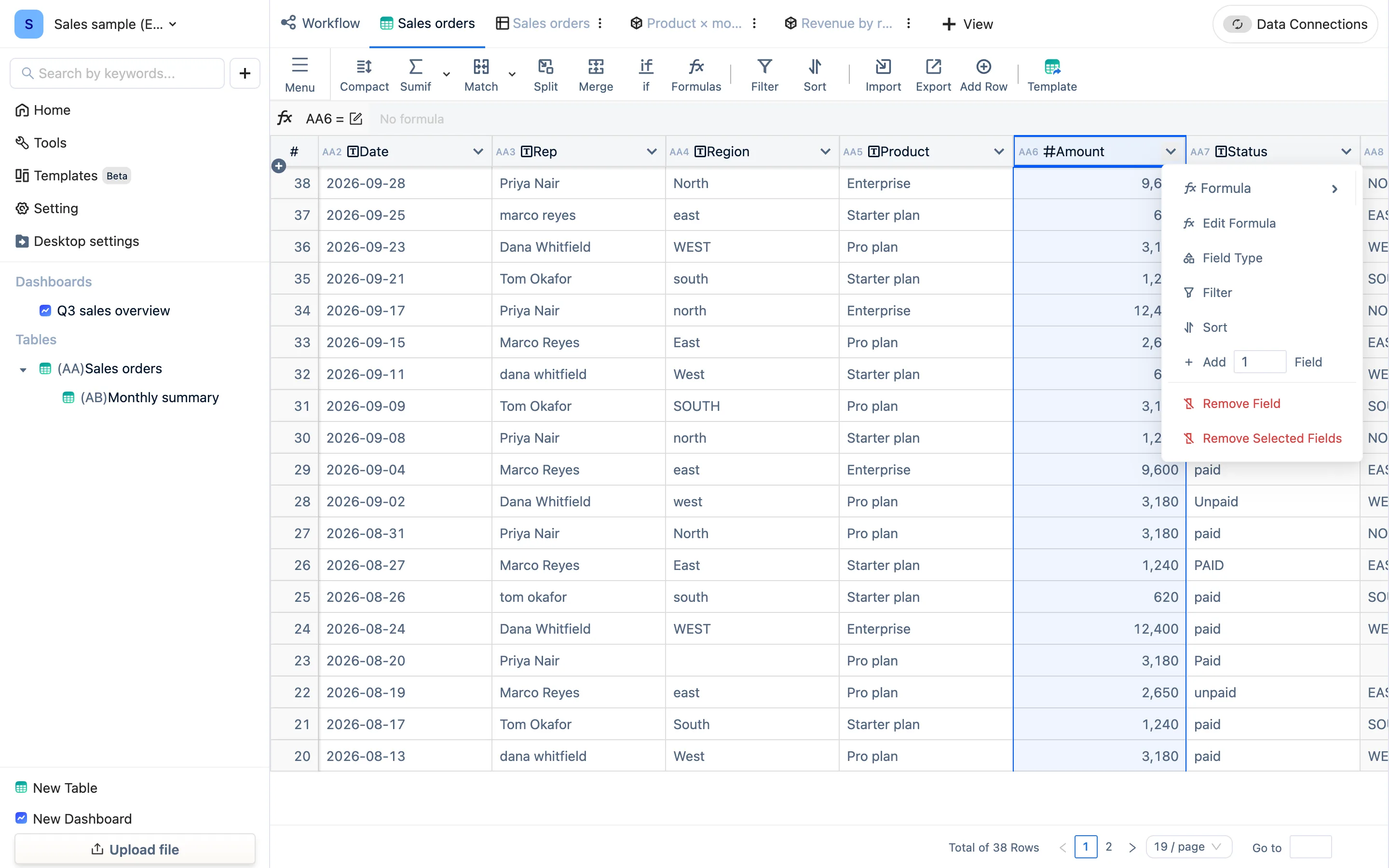
Click the chevron at the right of a header → Field Type, and pick one. The small icon in front of the header shows the current type: T for text, # for numeric, a calendar for dates, fx for a formula column. Types are guessed once from the contents at import; when the guess is wrong, this is where you fix it.
The eight types
| Type | Used for | Settings |
|---|---|---|
| Text | The default. Names, reference numbers, notes, anything mixed | — |
| Numeric | Amounts, quantities. Only this type sums, averages, maxes or mins | Decimal places, thousands separator, unit |
| Percent | Ratios. Stored as a decimal, shown as a percentage: 0.5 displays as 50% | Decimal places |
| Checkbox | Yes / no | — |
| Date | A date, or a date and time | "year-month-day" or "year-month-day hour:minute:second" |
| Dropdown | Pick one of a preset list, each option colorable | The option list, colors |
| Attachments & Media | Hang a file on the row | — |
| QR Code | Renders the cell's contents as a QR code; a single cell or a whole row can be downloaded | — |
Rules of thumb
- Amounts and quantities must be Numeric.
SUMIFover a text column returns nothing — this is the number one cause of "the sum is 0". - Use Dropdown for statuses and categories. Entry becomes a pick from the list, so "paid", "Paid" and "PAID" stop happening, and the colors double as markers in worksheets and dashboards.
- Leave reference numbers, ID numbers and phone numbers as Text. Numeric drops leading zeros and rounds long numbers.
- Changing a type never changes the content, only how it is read.
2026-09-03moving from text to Date keeps its value, but can now take part in date arithmetic and time-range filters. - A formula column's type follows its result. Aggregating formulas (sum, average and so on) inherit the source column's number formatting — currency, decimals, thousands separator.
How types interact with the panels
Many panel steps filter the selectable columns by type: Sumif only lists numeric columns, Split DateTime only lists date columns, and the percentage field of a signal map has to be a Percent column. When a column you expect is not in the list, come back and check its type.