Writing formulas by hand
Where the formula editor is, the syntax rules in one table, the three kinds of function you will actually use, and the five reasons a formula comes back empty.
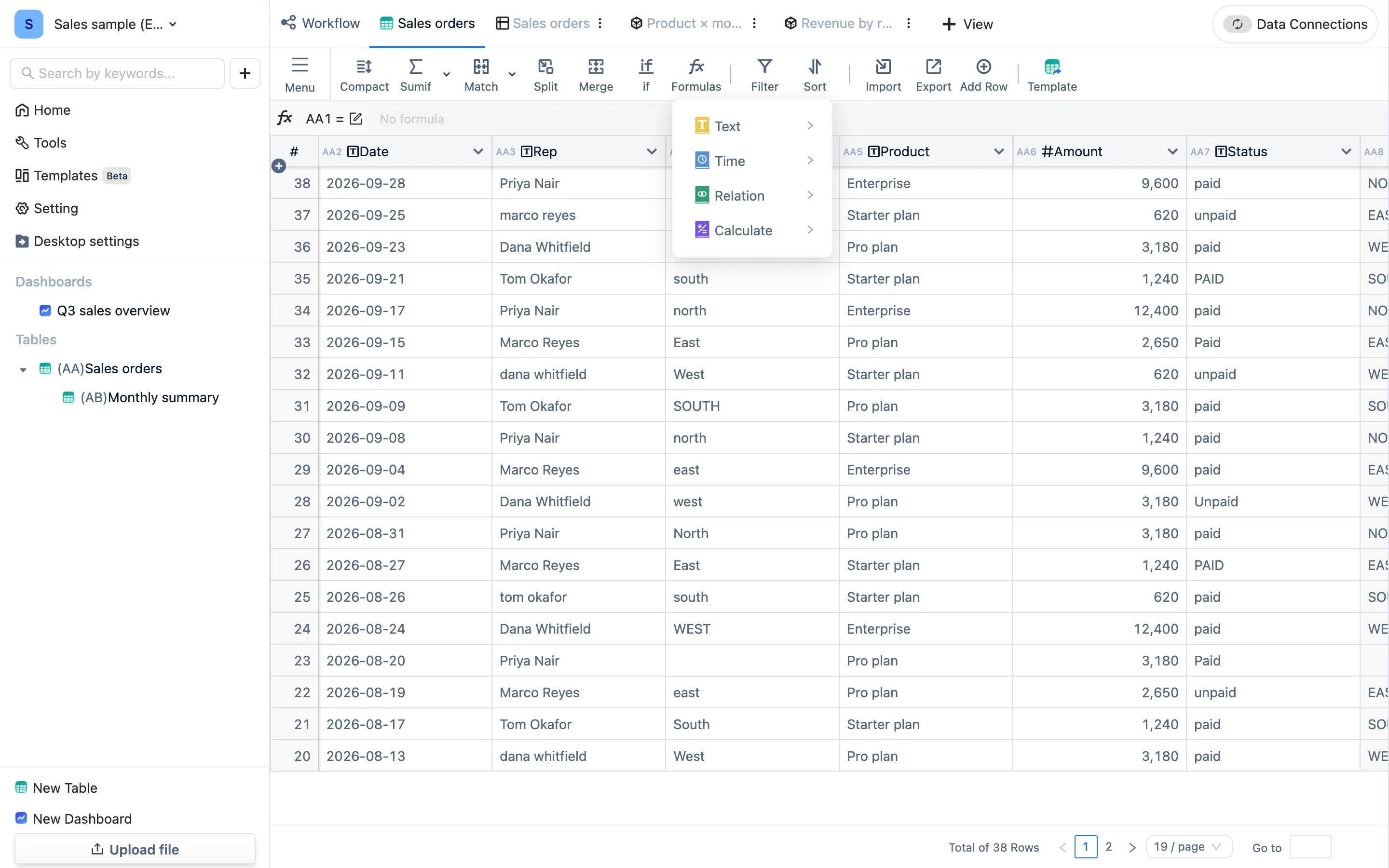
Opening the formula editor
Three ways:
- Click a header to select the column and type straight into the formula bar above.
- Header dropdown → Define Formula, which opens the full editor: the formula on the left, a Fields list of every usable column code on the right, a live preview of the first few rows below, and function help describing every function.
- Formulas in the toolbar, browsing by category — text, date and time, relation, calculation — which opens the same editor.
A formula lives on the column and applies to every row. To give a column a formula, add the column first and then define it. An existing data column can also take a formula, but its stored values are replaced by the formula's results — adding a new column is usually the safer move.
Syntax
| Rule | Example |
|---|---|
| Reference columns by code, not by name | AA6 * AA7 |
| Cross-table is just the other table's code | Inside table AB: sumif(AA6, AB1 = AA9) |
| Function names are case-insensitive | SUMIF(...) and sumif(...) are the same |
| Text goes in double quotes | if(AA7 = "PAID", AA6, 0) |
| Numbers are written plainly | AA6 * 1.13 |
Conditions use comparators, joined with and / or |
AA6 > 1000 and AA4 = "EAST" |
| Arithmetic | + - * /, brackets allowed |
While typing, column codes are highlighted, typing A suggests columns of this and related tables, and typing a function name suggests its arguments.
The three kinds you will actually use
Within one row (each row independent): AA6 * AA7, upper(trim(AA4)), left(AA2, 7), concat(AA3, "-", AA5), if(...).
Across rows (looking at a whole column or table): sumif(column, condition), countif(column, condition), maxif / minif / average / median / distinctcountif. Matching "this row's key" against "the source's key" inside the condition is what makes it a grouped total:
sumif(AA6, AB1 = AA9) In table AB: sum AA's amount for rows whose month equals this row's monthAcross tables: xlookup(this table's key column, source key column, source value column) fetches one field from another table — this is what the Match panel writes.
Every function is listed by category in the function reference.
When the result is empty or an error
- A column code that does not exist (mistyped, or the column was deleted) — the formula bar marks it red.
- Arithmetic on a text column — fix the field type first.
- Cross-table keys that do not match —
2026-09against2026-9, orEASTwith a trailing space againstEAST. Normalize both sides withtrimanddateformatfirst. - Empty for a few seconds after writing it — it is calculating; wait.
- Circular references (A references B, B references A) are not allowed.
Panels and hand-writing mix freely
A formula a panel produced sits in the formula bar and can be edited; after editing it is still that column's formula. Conversely, a hand-written formula column shows its references in the Workflow graph exactly as a panel-produced one does. Two routes, one destination — take whichever is quicker.