Preview, share, publish and view counts
Switching between view and edit mode; the public dashboard, member invitation and public form inside Share, each with its permission switches, QR code and link refresh; and the view counts a published dashboard collects. Links need a server, which makes this a team-edition capability.
Viewing and editing
- Opening a dashboard from the sidebar puts you in view mode: look, don't touch, with two buttons beside the title — Share and edit.
- Editing opens the editor; Preview goes back to view mode, and you can save by hand although it saves itself.
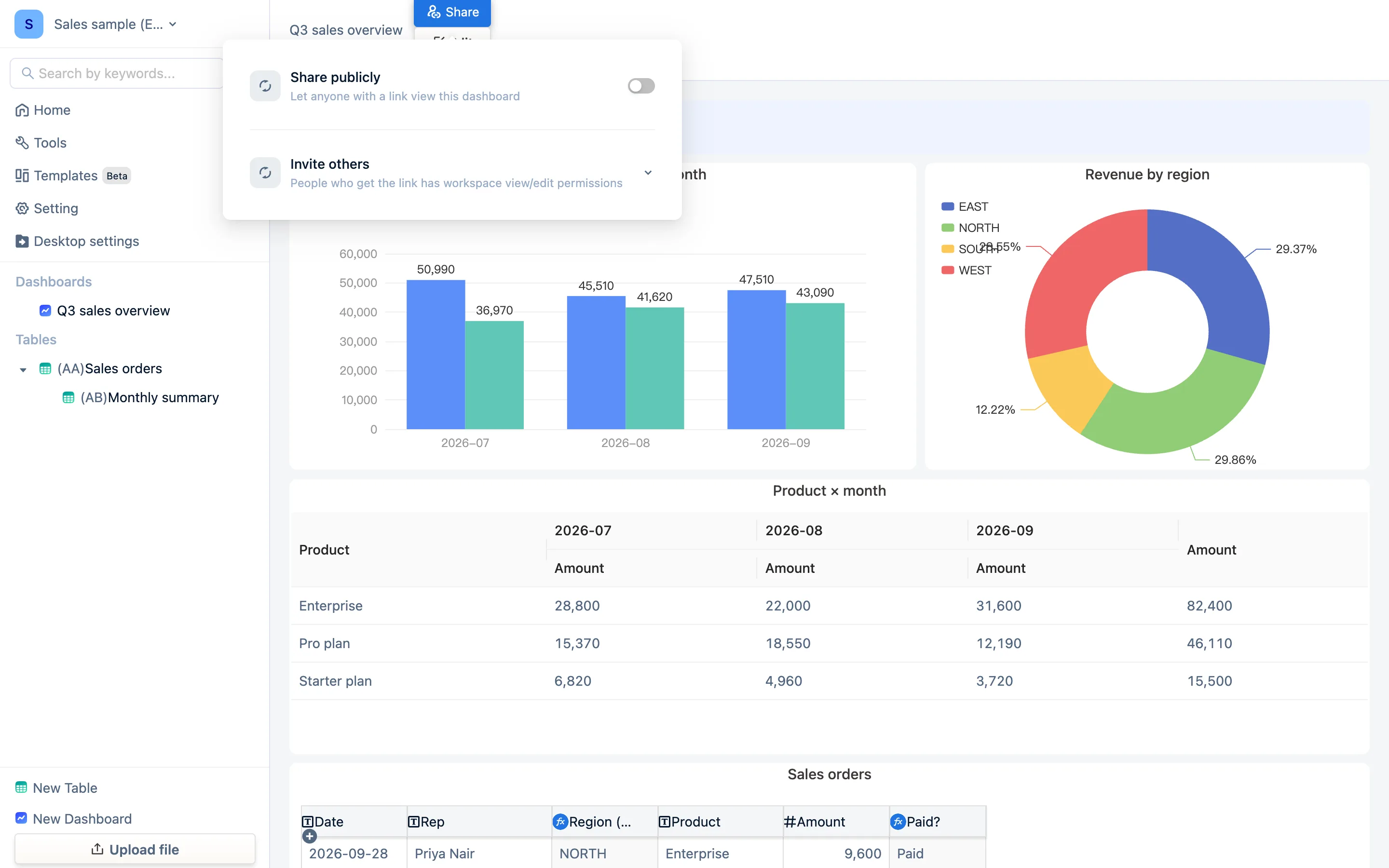
Share
Share at the top right of view mode:
| Method | Who can open it | Permissions |
|---|---|---|
| Public Dashboard | Anyone with the link, no account | Can view the dashboard. Optional switches: Allow Data Editing, Allow Data Downloading, Allow Data Removing |
| Invite others (Collaborative Sharing) | Whoever takes the link joins the workspace | Workspace view or edit rights, with a role |
| Share publicly (form) | Anyone with the link | Submit data only, through a form component |
Each offers a copied link and a QR Code to scan on a phone. You revoke a share by refreshing it: Refresh Public Link or Refresh Invite Link — Refreshing the link will deactivate the previous one.
A shared link needs a server other people can reach. The desktop app's engine runs only on your computer, so any link it generates points at your own machine and nobody else can open it. Sharing and publishing are therefore a team-edition capability. To get a dashboard to someone from the desktop app, use a component's Download PNG, or hand them a .tdbk backup to import into their own copy.
View counts
A published dashboard collects Analytics: Total views in the last 30 days, Daily visits, and Unique Visitors. Before publishing it says Dashboard not published; published but unvisited says No views yet. Useful for finding out whether a dashboard is actually being read.
Allow Data Editing on a public dashboard
With it on, whoever holds the link can edit cells in a worksheet component and submit forms — handy for letting people on the ground update a status right on the dashboard. The risk is that anyone with the link can do it, so for data that matters use invitations and roles instead of a public link.