Worksheet view
The plainest and most-used view — the same table with a different set of visible columns, a different order and a different filter. Show different people different columns, or keep a few filter combinations you use every day.
How it differs from the table itself
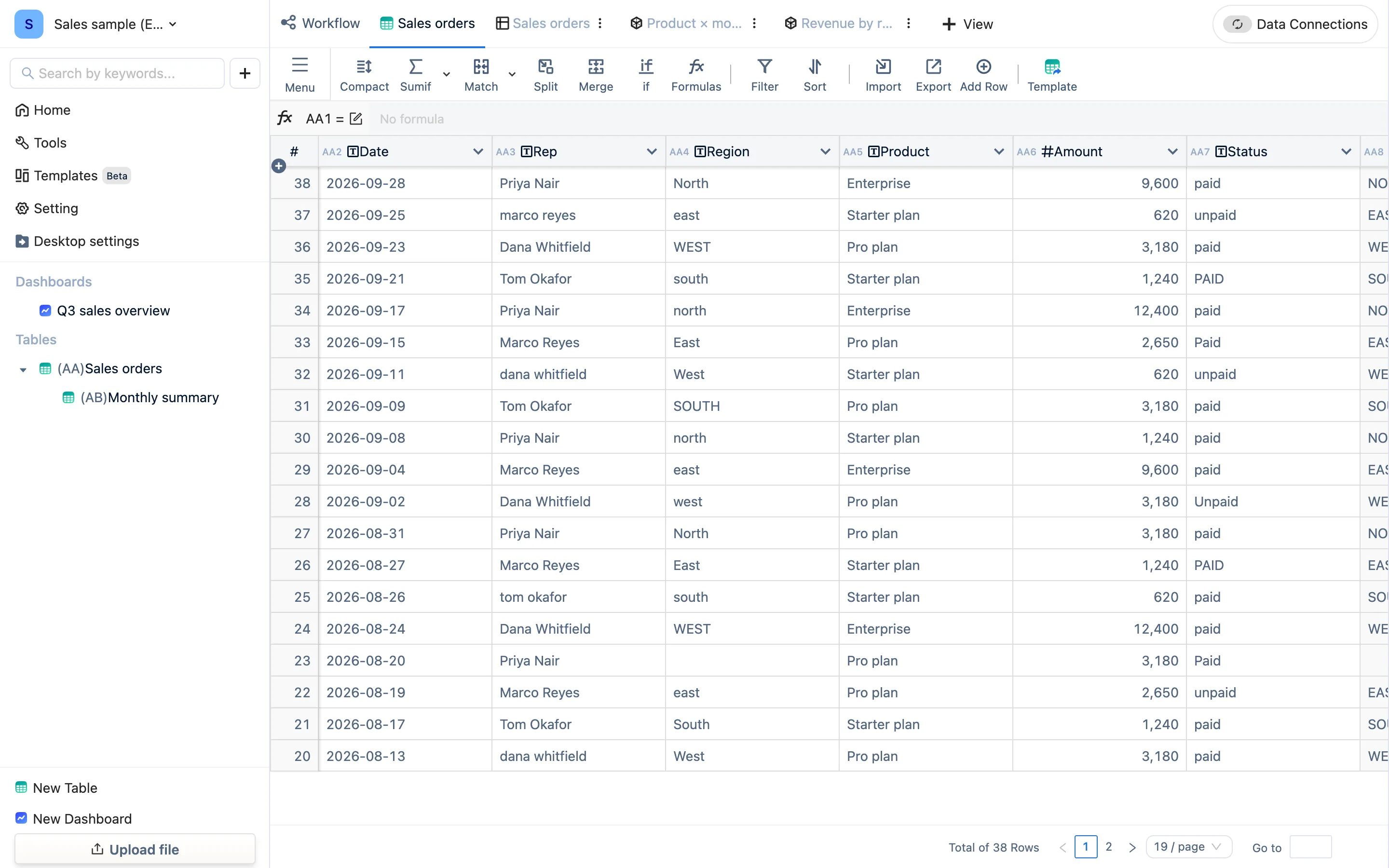
The first tab is the table: every column, default order. A Worksheet view is a projection of it — you choose which columns show, how it sorts, what gets filtered out, and those settings belong to this view alone. The table is untouched, and so is every other view.
Creating and configuring one
- + View → Worksheet. It is named after the table by default; rename it from the tab's ⋮.
- Edit mode, then on the right:
- Fields (Select Display Fields) — tick the columns you want. Unticked ones are hidden, and formulas still reference them normally. The first time in, it says Please select the table fields to display.
- Sort Order — Add Sort, one or more columns.
- Basic Filter / Advanced Filters — the same comparators as the filter page, including the relative date ranges.
- Rows per Page, Display Field Headers and the other style settings.
- Exit edit mode.
You can also skip edit mode entirely and use Filter and Sort in the toolbar — same result.
What people use it for
- A view for finance — order number, amount and payment status only, filtered to unpaid, sorted by amount descending.
- A view for yourself — "added this week": filter date = this week. Every Monday it is this week's.
- The detail table on a dashboard — the sales-orders block on the sample dashboard is a worksheet view: fewer columns, paged.
Can you edit cells in it?
Yes. Double-click a cell in a worksheet view and you are editing the table's data, because the view holds no copy. Formula columns stay read-only.