The formula panels
Sumif, Match, Split, Merge and if in the toolbar are the main way to calculate without writing a formula. Each is numbered steps with a live preview, producing a formula column or a new table — and each can be filled in by AI.
What each panel is for
| Panel | The question it answers | What comes out |
|---|---|---|
| Sumif (Summarize) | Group by one column and sum / count / average another? | A new summary table |
| Match (cross-table lookup) | Pull a few columns across from another table on a key? | New columns on this table |
| Split (Split table) | Keep only the rows matching a condition? | A new table |
| Merge (Merge data) | Stack several tables of the same shape into one? | A new table |
| if | Label or pick a value per row by condition? | A new column on this table |
Formulas is the sixth entry point: browse every function by category — text, date and time, relation, calculation — and pick one into the formula editor.
The shape they all share
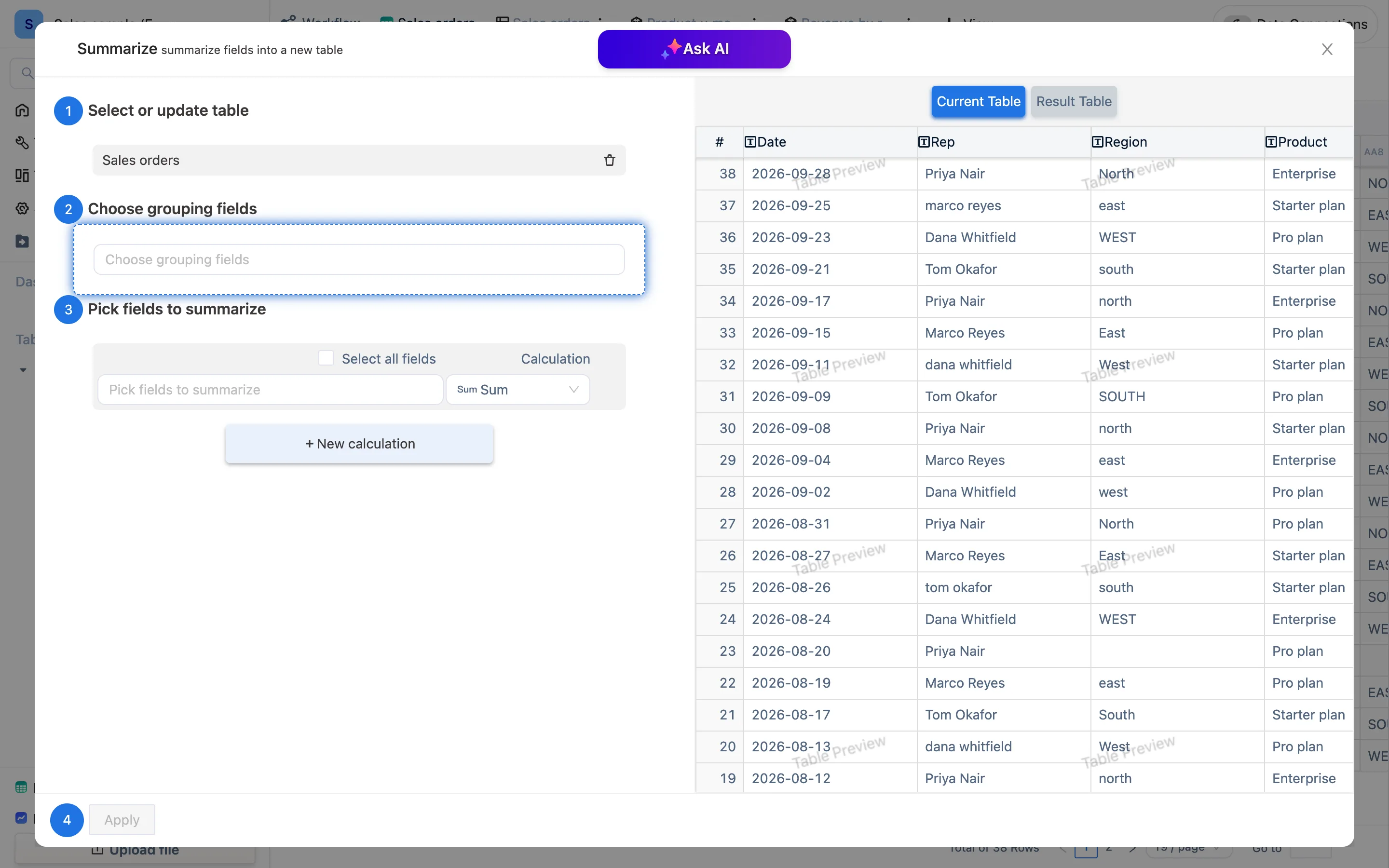
- Select or update table — the current table by default; you can pick another from the workspace, or Upload file to bring in an Excel that was never imported.
- Configure — pick fields, add conditions, choose a Calculation. Two or three steps per panel, each numbered.
- Preview — the right-hand pane toggles between Current Table and Result Table; the result appears live once the configuration is complete, so you can go back and change it.
- Apply — a formula column or a new table is created and you land on it.
What comes out is indistinguishable from something hand-written: the formula lives on the column, shows in the formula bar and can be edited; a new table carries formulas, so it follows its source. A panel only saves you remembering the syntax.
Ask AI
Ask AI sits at the top of the Sumif, Match and Split panels. Click it and AI reads the headers and a few sample rows, walks three steps — analyzing the table, looking for candidate options, generating a summary — and offers a few complete configurations. Pick one and the panel fills in with a preview; adjust by hand or confirm. It earns its keep when the table is unfamiliar and you do not know what to group by. It is a paid capability and needs an API key.
From a table, or from the Tools page
The toolbar panels default to the current table. The same wizards on the sidebar's Tools page ask you to pick the table first. The results are identical. When you have two Excel files that were never imported, the Tools page is the faster way in.