What automation is
When something happens in a table — a row is added, a column changes, a time arrives — run an action: post a request, write into another table, send an email. Rules live on the table and the engine watches them. A paid capability.
One automation = trigger + condition + action
| Part | Answers | Example |
|---|---|---|
| Trigger | When | The payment-status column changes; three days before a due date; a new order arrives |
| Condition (optional) | Only if | Amount > 10,000; status = unpaid |
| Action | Do what | Email the owner; POST the row to an ERP; write a row into a to-do table |
A table can carry several automations, each switchable between Running and Not Running.
How it divides with formulas
A formula answers "what is the value" — it recomputes when the data changes and has no side effects. An automation answers "what happened, who should hear about it, where should it be written" — a one-shot act with side effects. They pair up: compute "overdue?" with an if formula, then have an automation email somebody when that column turns yes.
The entry point, and the plan
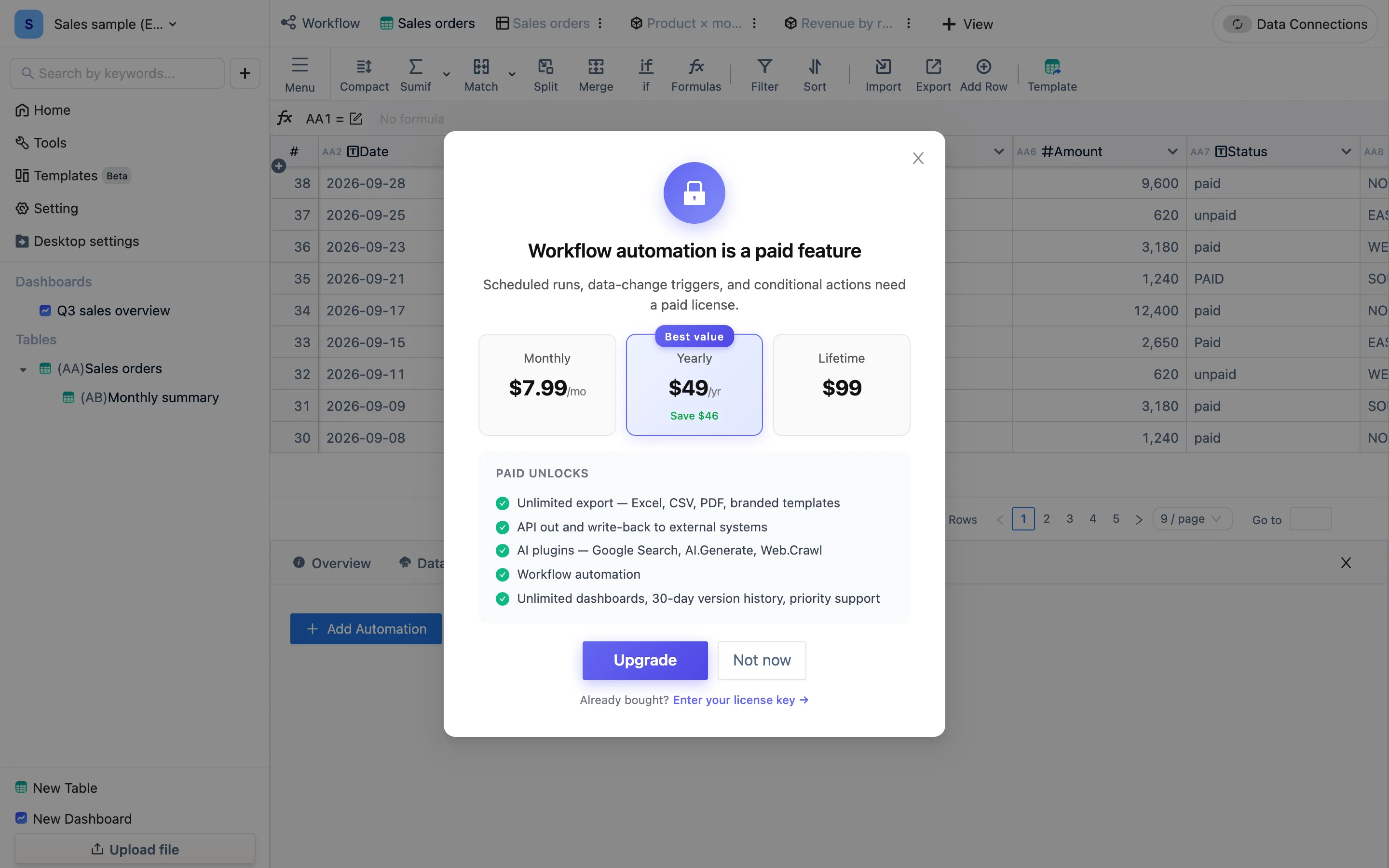
Automation is the paid workflow automation capability. On a free desktop license the backend answers /api/next/sheets/<id>/automations with a 402 and the interface raises Workflow automation is a paid feature — Scheduled runs, data-change triggers, and conditional actions need a paid license. On the team edition, a plan without automation says something else: The current package does not support automation, Click to upgrade to professional version.
The automation panel lives in the data panel below the table editor, whose four tabs are overview, data connections, API and automation; switch to automation and press Add Automation.
You cannot reach that panel in the current desktop build (macOS 0.0.9). Tested 2026-09-03: Data Connections at the top right of a table opens a separate dialog of its own; Export → Export Data Api opens the same panel as a modal showing only the API entry, with no tab bar. The one component that would open the automation tab — the vertical icon strip beside a table — is not rendered in this build.
So: the backend capability is there (the paywall proves it), the panel component is there, but no button leads to it. This chapter describes how automation is configured and what it can do; follow it once the product reconnects the entry point.
Where the desktop app stops
The rules are executed by the engine, and on the desktop app the engine runs on your computer: with the machine off or the app closed, nothing runs, and missed schedules are not made up when you open it again. For unattended, around-the-clock operation, use the team edition and its cloud engine.
Sending email needs the engine's environment to have a working mail channel; on the team edition the server provides one, and on the desktop app it depends on your own network — test it. Posting HTTP requests and writing into tables work directly on both.
This chapter
- Triggers: Data Added, Data Updated, Data Arrival Time
- Actions: Post to API, Submit to Table, Send Email
- Conditional actions: If … Conditions Met
- Scheduled tables and self-growing dates
- Debugging