Exporting Excel and CSV
The two plain ways out, under Export in the toolbar. Free exports the first 1,000 rows of each table and says so; paid exports everything. What you get is what the current view shows, formula columns included as values.
How
Open a table and press Export in the toolbar:
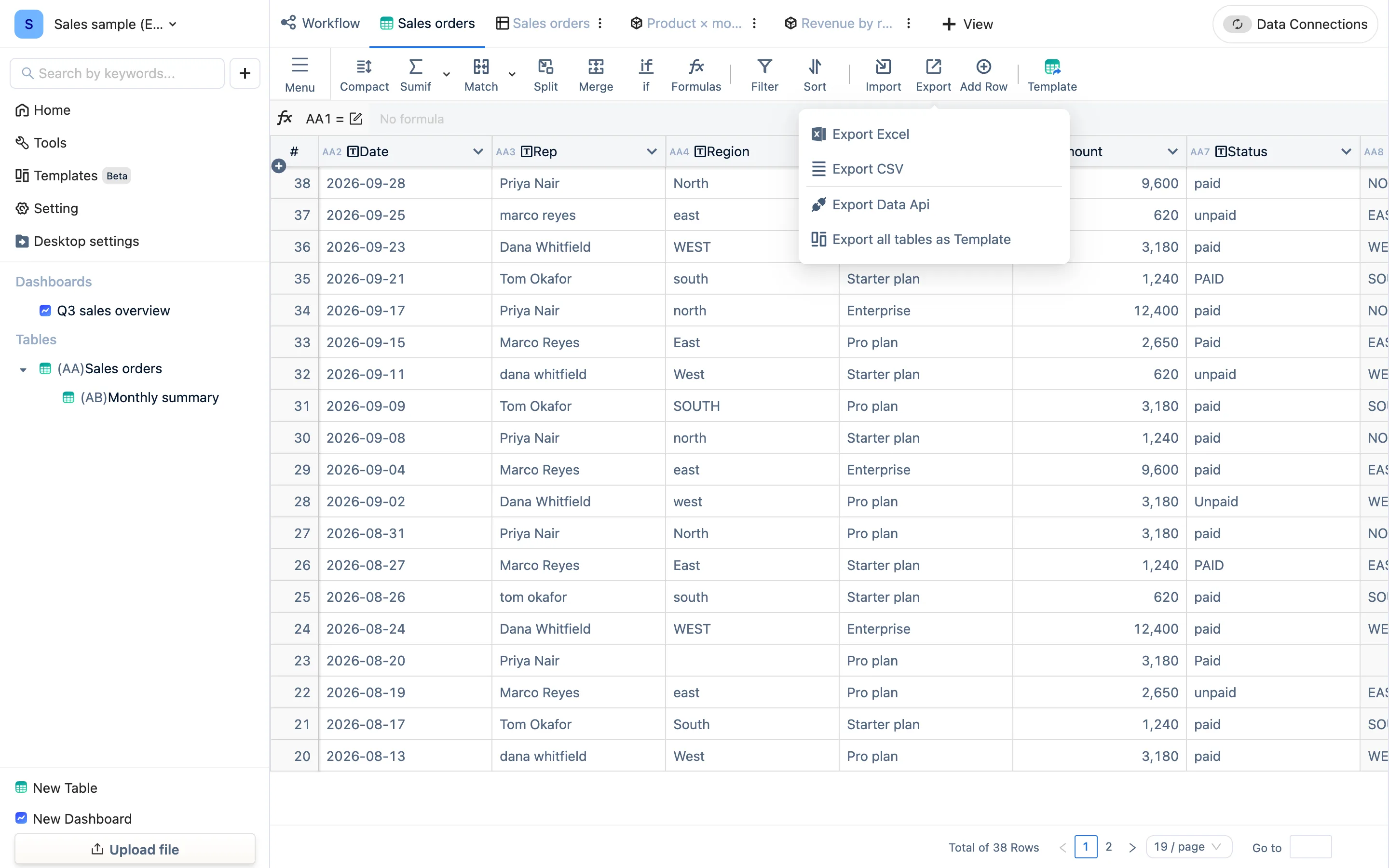
- Export Excel — an
.xlsx. Column names, column order and number formats (thousands separators, decimal places) come with it; a formula column exports its values, not the formula. - Export CSV — pick a location first; success is reported once the file is actually written. Plain text, the easiest thing for another system to swallow.
The scope is the current view. Filter, sort and hide columns and the export is filtered too. To export the whole table, switch back to the table's own tab first.
The free 1,000 rows
A free license exports the first 1,000 rows of each table, and says so when it hits the cap: Free exports the first 1,000 rows. Upgrade to export everything. You never get a silently truncated file. Tables under 1,000 rows export whole and never meet the line.
The line is drawn on the Excel and CSV exits only. Importing, computing, linking tables, charts and dashboards have no row limit; and the complete data can be taken away at any time — Desktop settings → data backup writes a .tdbk, free and uncapped, it just needs TableDI to open it. Full data in Excel form is paid.
Save as Excel Report
Menu → Export → Save as Excel Report is a different Excel export: laid out as a report (header styling, number formats), meant to be read by a person rather than parsed by a system. The row rules are the same as an ordinary export.
Details worth knowing
- Date columns export as dates. Text columns that look numeric (employee numbers, ID numbers) stay text in Excel and are not turned into scientific notation.
- A single-select column exports the option text; a checkbox exports yes / no.
- An attachment column exports the file name, not the file.
- Rows per Page in a view has no effect on an export; exports are not paged.
Other exits
- Read on demand from another system: Data API.
- Write back to a database or an endpoint automatically: Writing back.
- Reuse structure and formulas: Export as a template.
- A whole dashboard: PNG and PDF.