Language
The interface follows your system language — Chinese on a Chinese system, English everywhere else. Switch it by hand from the workspace-avatar drawer, and the menu bar, native dialogs and the language the AI answers in all follow.
Decided automatically
On first launch the operating system's language decides: Chinese for a Chinese system, English for everything else.
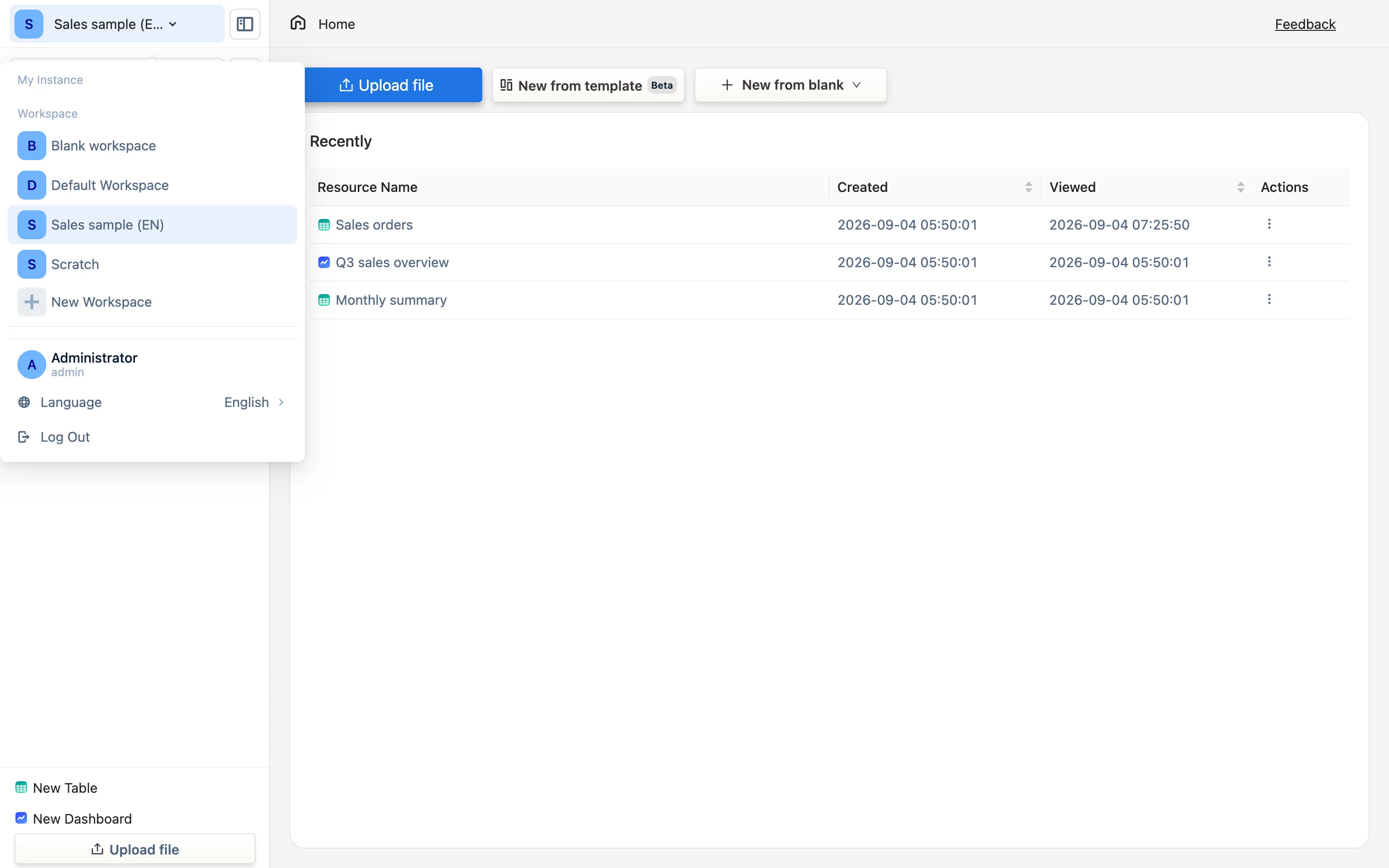
Switching by hand
Click the workspace avatar at the top left (the round icon at the top of the sidebar), and find Language at the bottom of the drawer, with the current language beside it. Pick 中文 or English. The choice is remembered across launches.
It covers: the interface text, the application menu bar, native system dialogs (backups, startup failures and so on), the splash screen, and the prompts sent with AI features — the AI answers in the language you picked.
The data is unaffected
Language only changes the interface. Table names, column names and cell contents are things you wrote and are never translated. The built-in sample templates come in a Chinese set and an English set, and the one matching the current language is installed; anything already installed does not change when you switch.
Three things that will not switch
- Table names, column names and cell contents. Your own words, never translated.
- A sample template already installed. Whichever set went in stays in — switching the language will not turn "Sales orders" into 销售订单. For the other set, switch the language and install the sample again.
- The contents of a
.tdbkbackup. It backs up data, not the interface.
The website and the manual
Help links from the Chinese interface go to the Chinese site (www.tabledi.com.cn) and from the English interface to the English site (tabledi.com), with pricing shown per site. The two are separate bodies of content, not two languages of one site.