Creating from a template
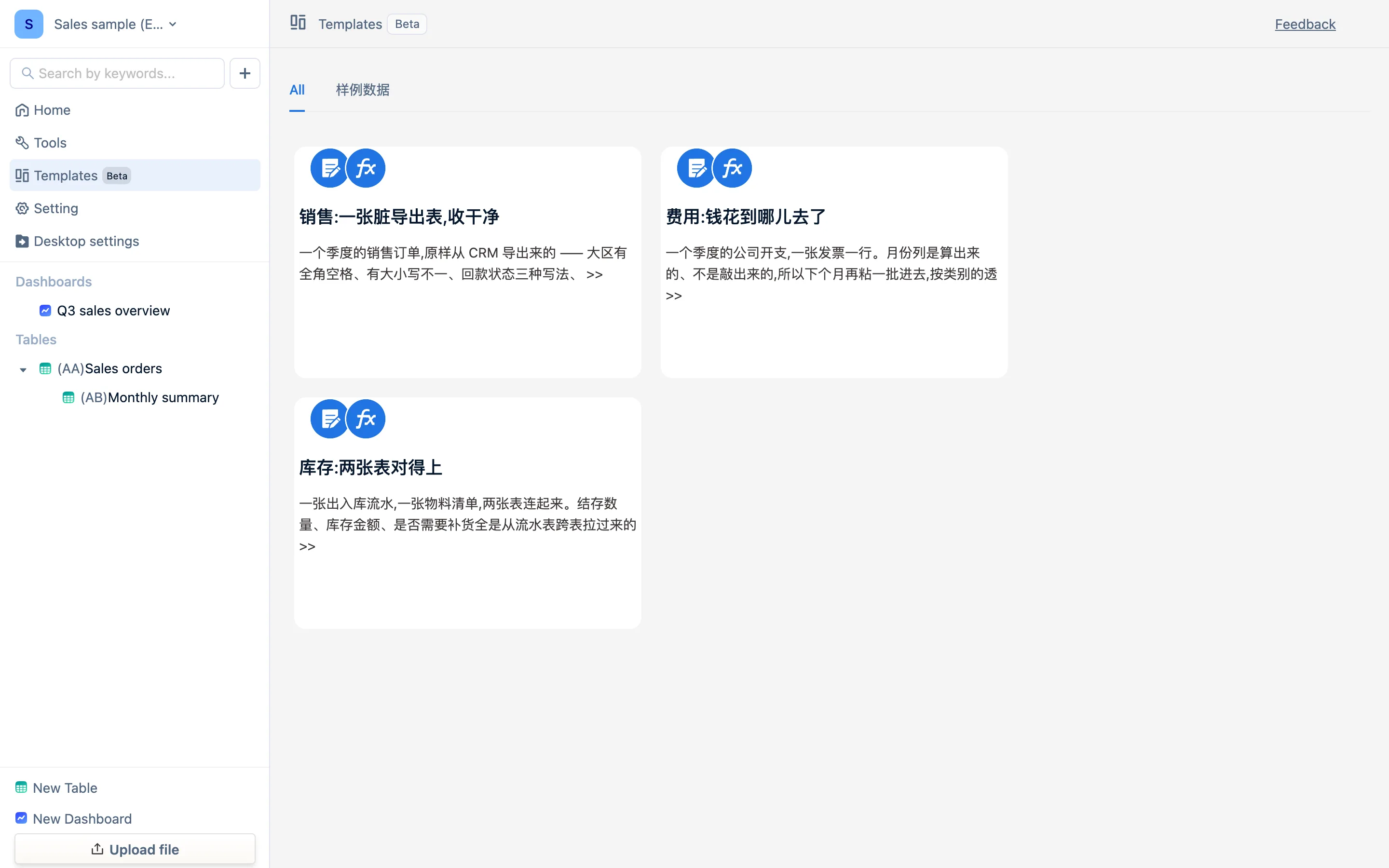
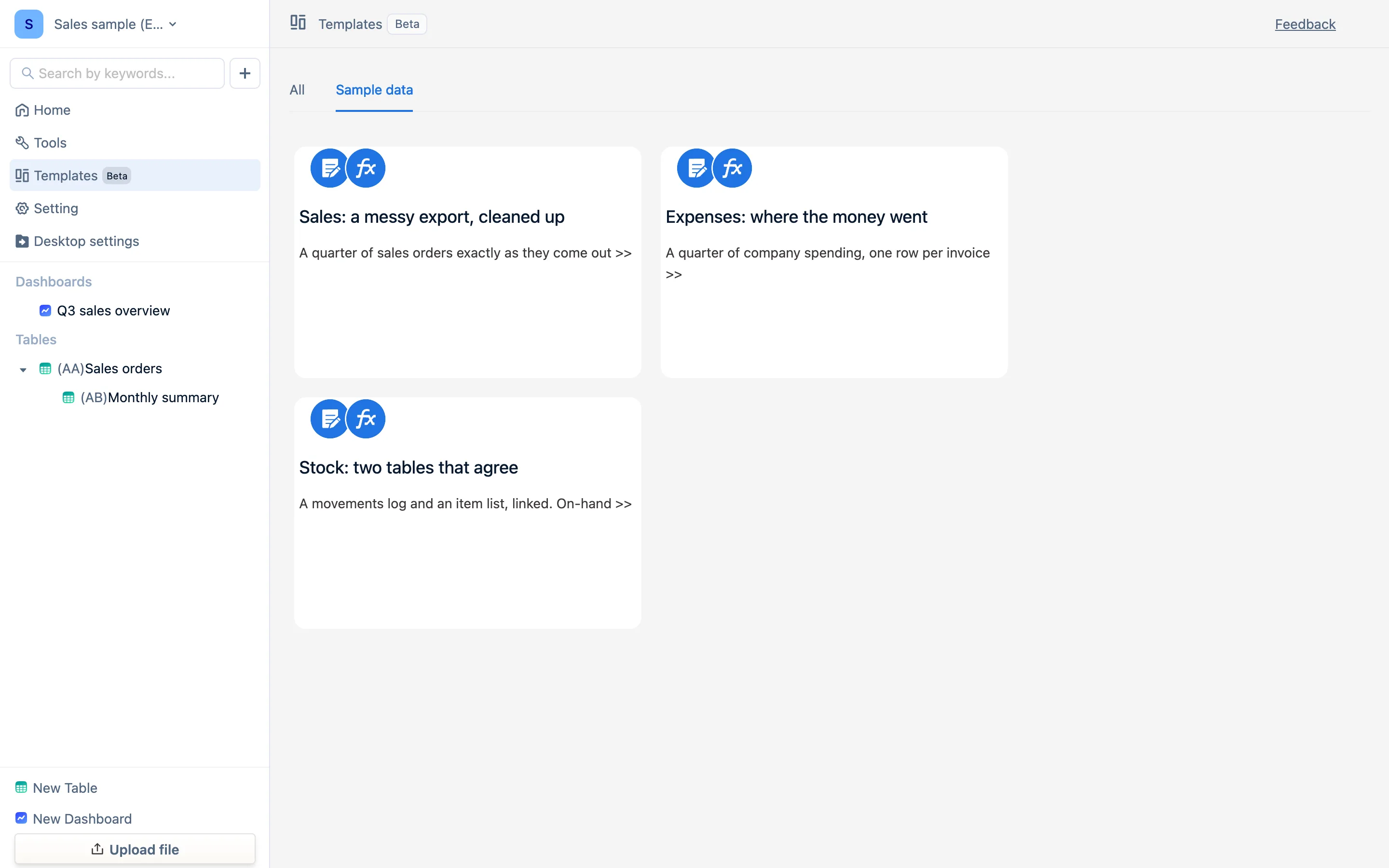
Two entry points — New from template on the home screen and the Templates page in the sidebar. Three built-in samples (sales, expenses, stock) plus Upload local template file. A template is added to the current workspace and touches nothing that is already there.
Where
- New from template at the top of the home screen: the dropdown holds the template library — all templates, the Sample data category, and Upload local template file.
- The Templates page in the sidebar: the same templates as cards, click through for detail.
- On an empty workspace, the home card Start with sample data applies the sales sample directly.
The detail page
Click a card and you get its description (what it demonstrates), its resources (which tables, views and dashboards it will create), and Use this template at the top right.
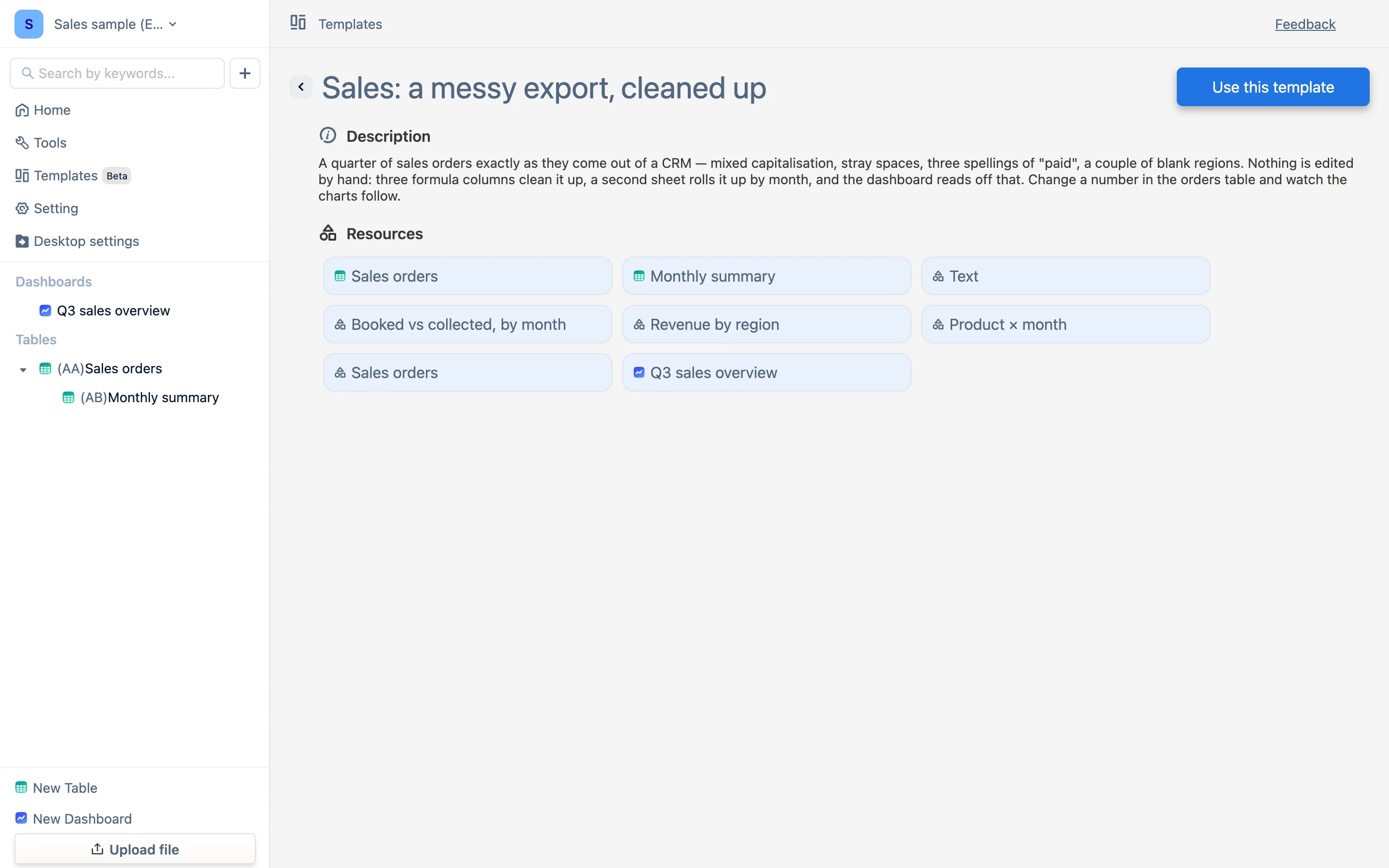
Press it and a few seconds later the tables it created are listed. They appear in the sidebar and are in no way different from tables you built yourself — change formulas, add columns, delete them.
The three built-in samples
| Sample | What's inside | What it demonstrates |
|---|---|---|
| Sales: a messy export, cleaned up | Sales orders (38 rows, deliberately dirty), a monthly summary, and the Q3 sales overview dashboard | Cleaning with formula columns, cross-table SUMIF, dashboard interaction |
| Expenses: where the money went | An expense ledger, a pivot (category × month) and a bar chart (spend by vendor) | A derived month column, pivot views |
| Stock: two tables that agree | A movements log and an item list | Cross-table matching for on-hand quantity, stock value and a reorder flag |
Ten minutes in uses the first one. Installing all three is fine; delete them whenever.
Upload local template file
Pick a .json template file — one you exported yourself, or one downloaded from the website. It reads the file and then goes through the same detail-and-apply flow.
A template is added to the current workspace: it only creates, never overwrites or deletes what is already there. That is completely unlike importing a .tdbk backup, which replaces the whole package — which is why handing templates around is safe.
The team edition's template library
The team edition has a central library where an administrator can publish a finished table as a template — name, category, description, cover image, languages, whether it is VIP-only — for everyone to use. The desktop app has no central library; templates travel as files.