Data connections — databases, APIs and cloud drives
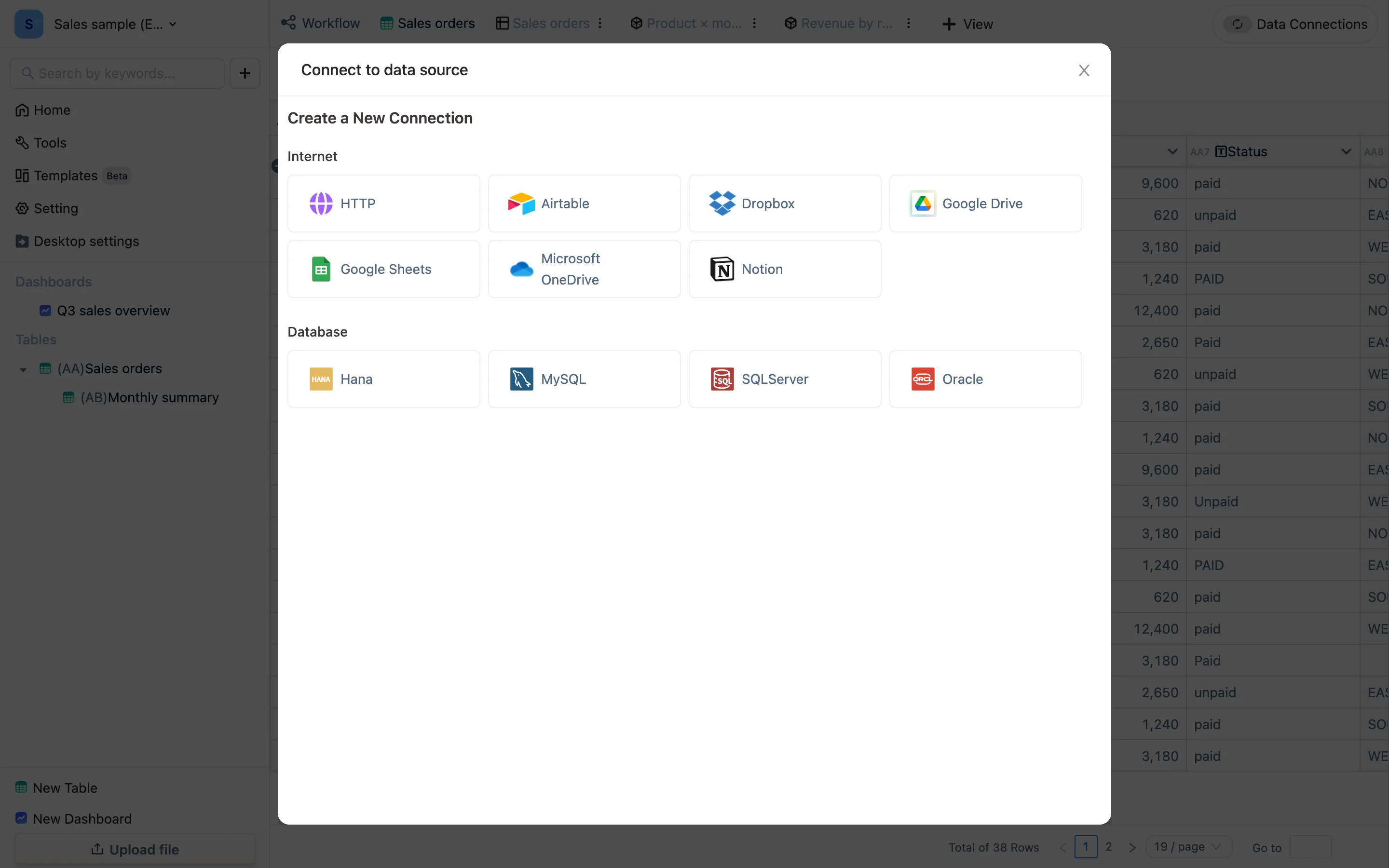
Keep a table following an external source. Supports HTTP endpoints, MySQL / SQL Server / Oracle / Hana, and Google Sheets, OneDrive, Google Drive, Dropbox, Airtable and Notion. This page covers the four-step wizard and a connection's life cycle.
What it is for
An import is a one-off: the file comes in and the link to its source is gone. A data connection is a standing link — the external data changes and the table follows; the table changes and the summary tables and dashboards follow. It suits business-system data you look at daily, a shared spreadsheet several people edit, and live API results.
The free version can create connections that read in. Writing the table's data back out (Outgoing Data) is a paid capability — see Writing back to external systems.
Supported sources
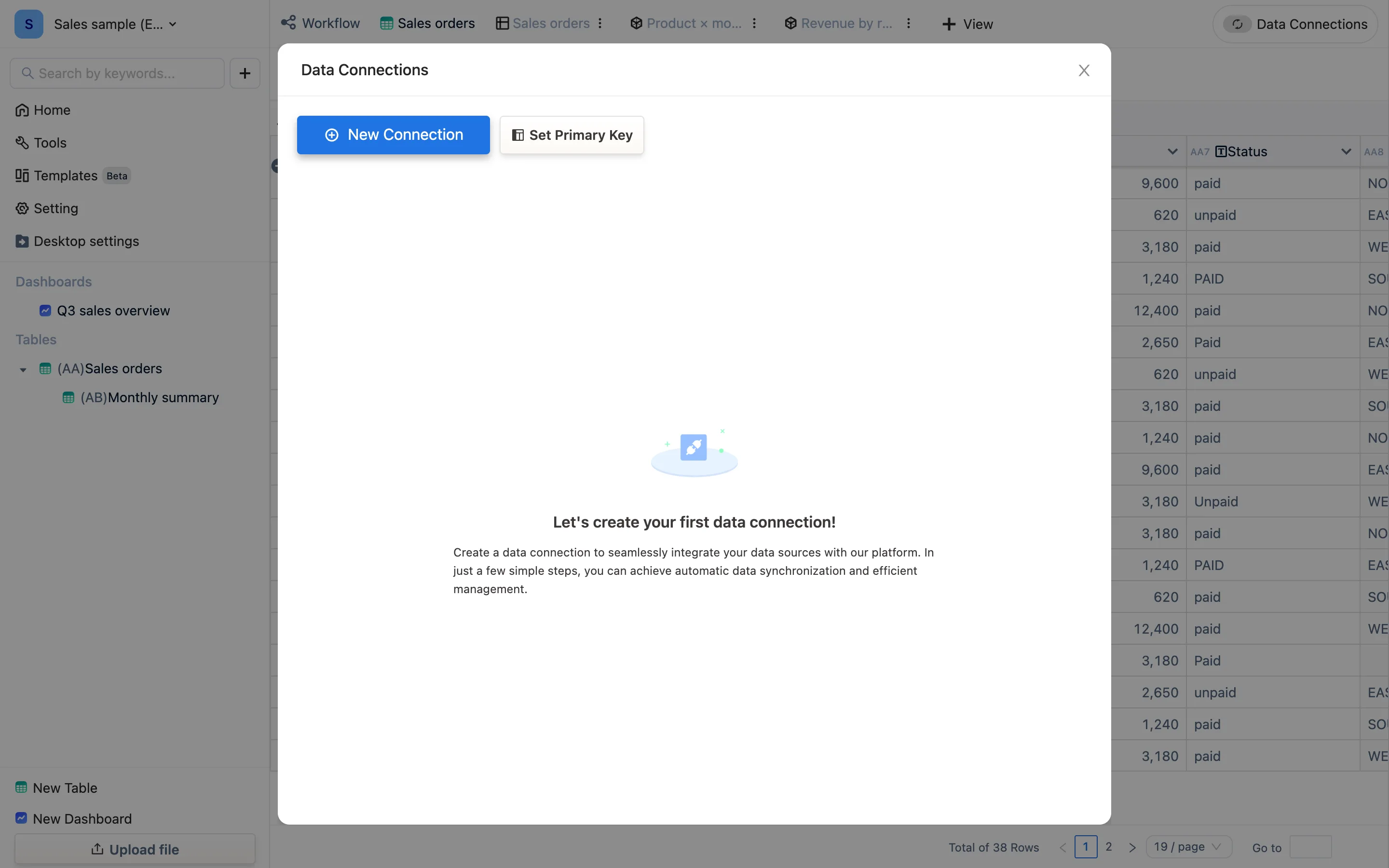
Open any table, then Data Connections → New Connection:
| Group | Source | Notes |
|---|---|---|
| Network | HTTP | Your own endpoint or a third-party API; TableDI pulls on a schedule, or an external system pushes into TableDI |
| Network | Google Sheets, Google Drive, Microsoft OneDrive, Dropbox | Authorize, choose a spreadsheet file, sync on a plan |
| Network | Airtable, Notion | Authorize, choose a base / database |
| Database | MySQL, SQL Server, Oracle, Hana | Host, port, database, credentials, then a table or a SQL statement |
Each type's specifics are in databases, HTTP and cloud drives.
The four-step wizard
Whatever the source, the path is the same, and the window names the steps:
- Connection Settings — how to reach it: address, port, credentials, or an authorization login. One connection can be reused by several tables.
- Channel Settings ("Next: Channel Settings") — what to take once connected: which table, which SQL, which endpoint, how often. One connection can hold several channels via New Channel for this Connection, each feeding one table.
- Date Selection ("Next: Date Selection") — preview what comes back and decide which fields enter the table. JSON from an endpoint can be narrowed with JSONPath.
- Data Binding ("Next: Data Binding") — map fields onto the table's columns; column names default to the field names. Complete returns you to the connection list and data starts flowing.
Each button lights up only once the step is validly filled in.
Once a connection exists
- The Data Connections button shows its state: Connected, Not Connected or Configuration Incomplete. On Sync Error, open it for the detail — sync time, duration, row count.
- Data is appended. To make the same record update instead of repeat, set a primary key first — identical keys keep only the latest row, which is what an incremental update is.
- Edit Existing Connection changes a channel; editing the connection itself warns that the channels under it are affected.
- Disconnecting stops the updates and leaves the rows already in the table alone; the confirmation says the data in that connection can no longer sync.
- Each plan has a connection limit; reaching it shows The maximum number of connections has been reached.
Common shapes
- A sales dashboard that updates every morning: a MySQL connection → a channel on the orders table with an incremental field → a summary table and a dashboard on top. No more moving files.
- A sheet a colleague maintains in Google Sheets or OneDrive: authorize, pick the file, build formulas and charts here. They keep editing where they always did; you stay current.
- An endpoint returning JSON: an HTTP client channel → paste the URL → JSONPath onto the array → bind the columns.