Backups: exporting and restoring a .tdbk
One encrypted file holding every table, workspace, dashboard and setting — free, with no row limit. Exporting, restoring, the detection on launch, where the data folder is, and what happens when you uninstall or change machines.
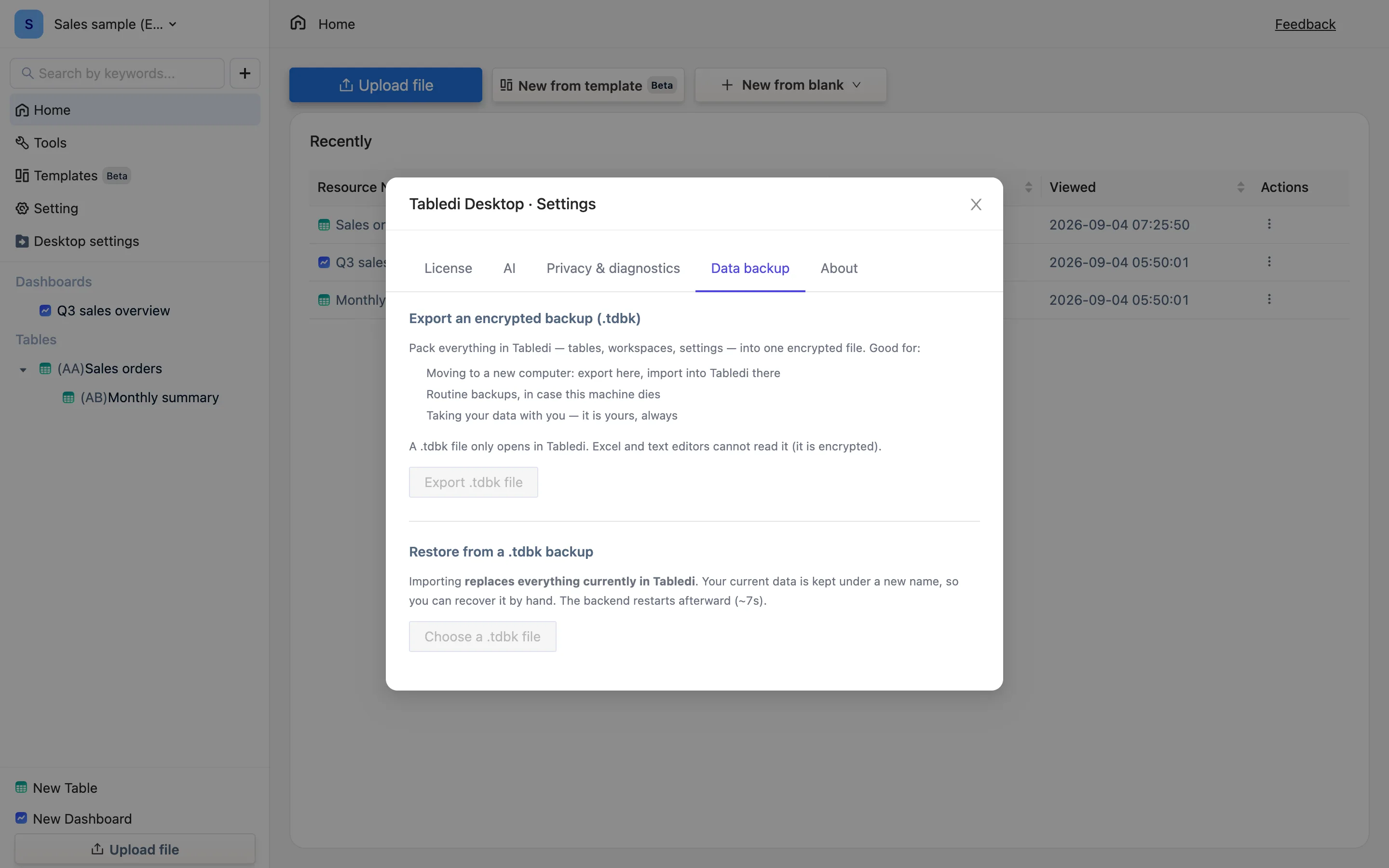
Exporting
Desktop settings → Data backup → Export .tdbk file, then pick a location. The file holds everything TableDI has: tables, workspaces, dashboards, views, formulas and application settings. It does not include your AI API key.
The panel gives three reasons to use it: Moving to a new computer: export here, import into Tabledi there, Routine backups, in case this machine dies, and Taking your data with you — it is yours, always. It is free, with no row cap.
A .tdbk file only opens in Tabledi. Excel and text editors cannot read it (it is encrypted). For a file other tools can open, use a table's Excel or CSV export.
Restoring (importing)
Importing a backup replaces everything currently in Tabledi: afterwards the app holds the backup's contents, not what was there before. The old data is not deleted — it is renamed and kept in the same folder (TableDI.bak-<timestamp>) and you can recover it by hand.
- Desktop settings → Data backup → Choose a .tdbk file.
- Confirm. The dialog is headed Importing will replace your current data and explains: Your current data is kept under a new name, so you can recover it manually. The backend restarts to load the new data (~7s).
- The engine restarts, about 7 seconds, and the data is in place. The completion message names the path your previous data was saved to.
Detected on launch
If the app finds a .tdbk in your downloads folder on startup — usually one you just downloaded from the cloud edition — it asks: Tabledi backup found, Found a Tabledi backup "
If you land on the Your data is not ready yet page instead, it carries an Import .tdbk backup button of its own.
Where the data sits on disk
- macOS:
~/Library/Application Support/tabledi-desktop/TableDI/ - Windows:
%APPDATA%\tabledi-desktop\TableDI\
That folder is the whole of it. Include it in Time Machine or a file-sync tool and you are covered. Don't copy it by hand while the app is running — a database mid-write copies incompletely. Quit first, or use the export above.
Uninstalling does not delete data
The folder survives an uninstall, and reinstalling brings your tables back. To really clear it, delete the folder by hand after uninstalling.
Changing computers
Export on the old machine → copy the file across → open TableDI on the new one and let the detection offer to import it (or import it by hand). The license is deactivated and activated separately, and the AI key is entered again.
A sensible rhythm
The data lives on this one computer, so backing it up is yours to do. At a minimum: export after finishing a meaningful piece of work; export before changing machines or reinstalling the operating system; and keep the file on a cloud drive or a second disk.