Help · Reading the preflight
Reading the preflight
Written for TableDI 2.0.0 on macOS · updated 2026-09-11
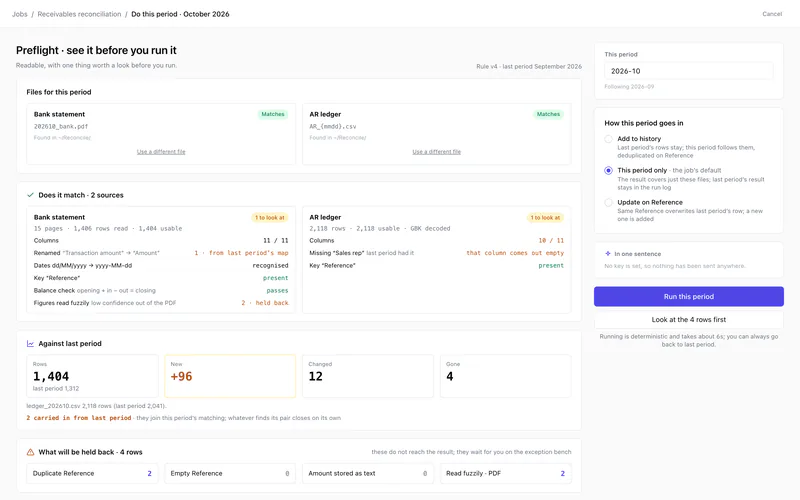
The preflight is the screen between dropping in this period's files and running them. It reads the files without changing anything and answers three questions, in this order: does each file match what the job expects (Does it match), what changed since last period (Against last period), and which rows will be held back for you to decide (What will be held back). A problem that makes the run impossible — the key column is gone, a file can't be read — is listed in red at the top under Has to be fixed before this can run, and Run this period stays disabled until it's fixed. Everything else is a warning under Worth a look: worth reading, never blocking.
The preflight opens from a job's Do this period or Process this period button, under the title Preflight · see it before you run it.

Files for this period
One card per source. When the job has a folder and a file-name pattern, TableDI 2 fills in the name it expects for this period, such as the new month in 202610_bank.csv. If that file isn't actually in the folder yet, the preflight can't read it: put it there, or click Use a different file and choose it. A card without a file says Not found — drop it here or choose it.
Does it match
For each source:
- n rows · n usable — how many rows were read, and how many can be used.
- Columns — how many of the expected columns were found, such as
11 / 11. - Renamed — a column that changed its name and was matched through last period's mapping, shown as “old” → “new”.
- Missing “…” — a column last period had and this file doesn't. That column comes out empty in the result and the delivery.
- Key “…” · present — the column that identifies a row is there.
- Dates … → … · recognised — the date format was read.
- A file in an encoding other than UTF-8 says what it was decoded from, such as GBK decoded.
Against last period
Rows (with last period's count), New, Changed and Gone compare this file with last period's. A big jump is the fastest way to spot the wrong file or the wrong month. Other sources get one sentence each.
If rows were carried over last period, you'll see … carried in from last period: they join this period’s matching; whatever finds its pair closes on its own. The first period says No previous period to compare with — this is the first one.
What will be held back
Rows that won't reach the result this period: Duplicate … and Empty … (the key column) and Amount stored as text. After the run, they wait for you on the exception bench, the job's Exceptions tab. Nothing will be held back this period. means exactly that.
Has to be fixed before this can run
| What the preflight says | What to do |
|---|---|
| The key column “…” is not in this file, so no two rows can be told apart. | Check whether the column was renamed in this export, or point the job at a different key. |
| “…” cannot be read. | If it is an old .xls, open it in Excel and save it as .xlsx. If it has a password, remove it first. |
| The text in “…” does not decode cleanly in any encoding we know. | Export it again as UTF-8 CSV, or open it in Excel and save as .xlsx. |
| “…” has no rows under its header. | Check you exported the right period. |
The fix is always on the file side. Swap in the corrected file with Use a different file, and the preflight reads it again.
Worth a look
Warnings don't stop anything, but read them:
- “…” is not in this period’s file; the delivery will have that column empty.
- “…” was number last period and is text this period. A type change usually means an export setting changed upstream, and it often shows up as Amount stored as text under What will be held back.
This period
The period label: 2026-09 for a month, 2026-W36 for a week, 2026-09-06 for a date. The small print says how it was chosen: Following 2026-09 (the next one after the last period run), Read from the file names, or From the schedule (the last full month or week). Change it if it's wrong. A label in any other shape turns the field red: Use 2026-09, 2026-W36 or 2026-09-06.
Labels only move forward: a period that isn't later than the last one run is refused.
How this period goes in
| Option | What it does |
|---|---|
| Add to history | Last period’s rows stay; this period follows them, deduplicated on the key. |
| This period only | The result covers just these files; last period’s result stays in the run log. |
| Update on … | The same key overwrites last period’s row; a new one is added. |
The job's default is marked · the job’s default, and your choice applies to this period. The first period of a new job runs as This period only. The job's History tab keeps every row only for periods that went in with Add to history.
Not every source takes every option: This period only needs a source set up for a fresh table each period, and Update on … doesn't work for a source that only ever adds rows. When in doubt, keep the job's default.
In one sentence
With an AI key saved and One-sentence summary on the preflight switched on in Settings → AI, TableDI 2 writes one sentence about the preflight. It's written from the preflight's own counts, file names and column names; no rows are sent. Without a key the box says No key is set, so nothing has been sent anywhere.
Run this period
The small print under the button estimates the time: Running is deterministic and takes about … s; you can always go back to last period. Deterministic means the same files and the same rules always give the same result. Going back to last period's result is on the job's run log; see What ran, and what it produced.
Still stuck? Email us — one inbox, read by the people who build TableDI.