Help · The five ways out of an exception

The five ways out of an exception

Written for TableDI 2.0.0 on macOS · updated 2026-09-11

An exception is a row the job handled exactly as told and that still needs a person: a payment that matches nothing in the ledger, two amounts that disagree, a key that's blank or appears twice. After a run they wait on the job's Exceptions tab, under To confirm. For each row, or for a group with the same cause, you pick one of five ways out:

  1. Add a rule and preview — fix the cause for every period after this one. Lifetime version.
  2. Change the source file — the file itself is wrong.
  3. Waive this period… — accept it, with a reason that goes into the delivery.
  4. Carry to next period — the other side will arrive later, as with money in transit. Lifetime version.
  5. Mark as to do — neither wrong nor finished.

You don't have to settle every row before delivering. Whatever is still to confirm stays on the Exceptions tab, and the delivery asks you once before it goes out.

Reading the Exceptions tab

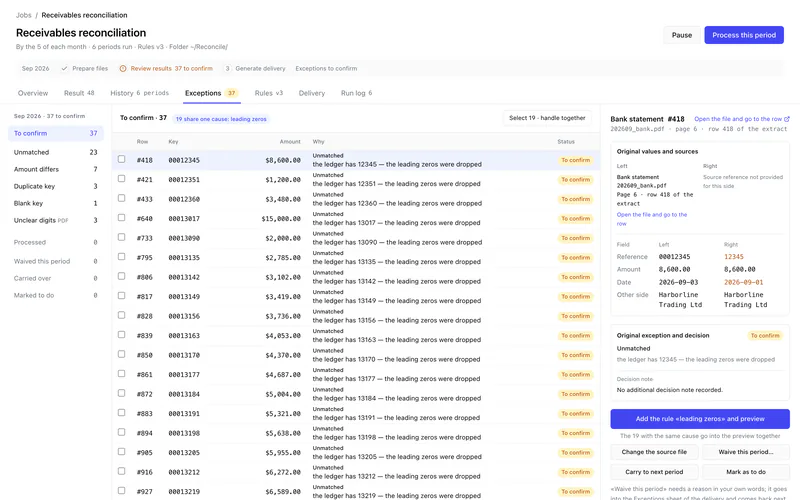
The Exceptions tab: kinds on the left, the rows in the middle, the selected row and the ways out on the right.

  • LeftTo confirm at the top (the tab opens there), then the kinds this period has, such as Unmatched, Amount differs, Duplicate key or Blank key, each with its count. Below them, Processed and where decided rows went: Waived this period, Carried over, Marked to do.
  • Middle — the rows, 200 to a page, with their Status. Rows that share one cause are counted together, and Select … · handle together ticks all of them. You can also tick rows one by one.
  • Right — the selected row: its values on both sides next to each other, the decision so far, and the ways out.

Unmatched ≠ wrong. Unmatched means in the bank file, not in the ledger. The other way round — in the ledger, not in the bank file — isn't an exception: it's the not received column of the result.

1 · Add a rule and preview (lifetime version)

The main button, labeled Add the rule «…» and preview when TableDI 2 recognizes the cause, and Add a rule and preview otherwise. It opens the job's Rules tab at the matching step, with the rows that share the cause as the example. With an AI key saved, a suggestion card appears there with its effect worked out on this period's data.

Nothing changes until you click Apply · make v… on the Rules tab. When you do, this period is worked out again with the new rules, and the rows the rule settles leave the list, in this period and the ones after. See Changing a rule.

In the free version, this button shows the lifetime card instead.

2 · Change the source file

For when the file itself is wrong: a reference typed wrong in the export, an amount entered twice at the source. The row is marked Source changed · review again, and it still counts as to confirm.

A period runs once in TableDI 2.0.0, so a corrected file can't be run into the same period again. Get the source corrected so next period's files are right, and settle this period's row with another way out — waive it with a reason, say — so the delivery says what happened.

3 · Waive this period…

Opens Waive … this period and asks Why (goes into the delivery): at least two characters, because this is what your reader will see. For example: bank charge rounding, agreed with the customer. Then click Waive.

The row moves to Waived this period and goes into the delivery's Exceptions sheet with your reason and its original difference. Waiving doesn't change any numbers: the difference stays in the result and the summary. If the same row turns up again next period, it's back as to confirm.

4 · Carry to next period (lifetime version)

For rows whose other side will turn up later: a payment in transit at month end, an invoice raised just across a month boundary. The row is marked Carried to … with the next period, and it goes into this period's Exceptions sheet.

Next period, carried rows join the matching; the preflight says … carried in from last period. When a carried row finds its other side, it closes on its own and shows Closed in …. If it doesn't, it's back to confirm.

In the free version, this button shows the lifetime card instead.

5 · Mark as to do

For things that are neither wrong nor finished, like a customer query still open. The row stays visible under Marked to do with the status To do, goes into the Exceptions sheet as to do, and doesn't make the delivery ask.

Changed your mind

Open a decided row, from Processed or one of the three groups under it, and click Put it back to «to confirm».

Several rows at once

Tick the rows, or use Select … · handle together for a group with one cause, then click the way out. It applies to every ticked row; waiving asks for one reason that goes with all of them.

When nothing is left

The middle of the screen says Nothing left to confirm this period., with how many rows were waived, carried over and marked to do, and a Generate delivery button.

What the delivery shows

Status Delivery asks first? In the Exceptions sheet of the Excel report?
To confirm Yes No — it stays on the Exceptions tab
Source changed · review again Yes No
Waived No Yes, with your reason and the original difference
Carried to … No Yes, with the period it went to and the original difference
To do No Yes, as to do, with the original difference
Closed in … No No
Settled by a rule No; it's no longer an exception

The explanation card

With an AI key saved and Explanation cards on exceptions switched on in Settings → AI, a card titled Why this one didn't match explains the selected row. It's written from that row's two sides and the column names; the whole table is never sent. The card can suggest a rule to preview, and nothing applies until you click Apply on the Rules tab.

Still stuck? Email us — one inbox, read by the people who build TableDI.