Help · Handing the result over

Handing the result over

Written for TableDI 2.0.0 on macOS · updated 2026-09-11

A delivery is the file that leaves a job at the end of a period. Open the job's Delivery tab and pick what to deliver under What to deliver: Excel report is ticked by default, and CSV is free too. Under Who gets it, switch on Save to a folder: the file goes to Documents › TableDI 2 unless you click Choose a folder and pick another. Then click Generate this period's delivery. The Excel report has three sheets: the summary, the detail, and the exceptions you decided — waived with your reason, carried over, to do. If exceptions are still to confirm, TableDI 2 asks once, Deliver anyway or Go back and handle them, and then writes the file as <job name> · <period>.xlsx. The period then shows as delivered on Jobs.

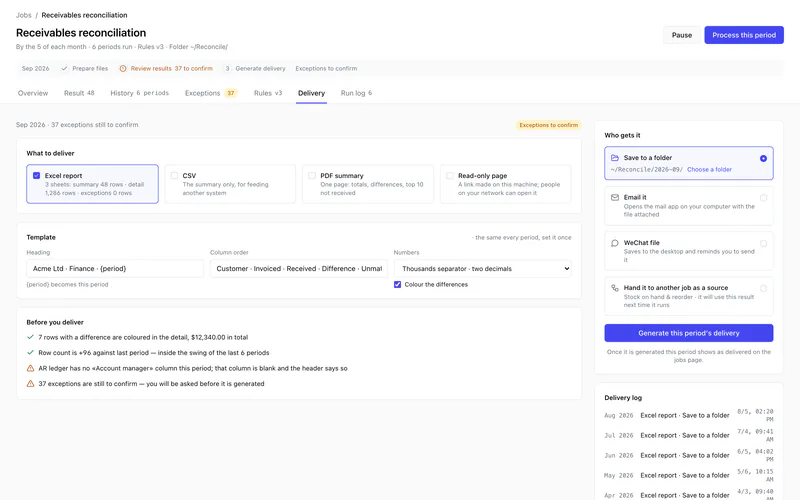
The Delivery tab: what to deliver, the template, the checks before delivering, and who gets it.

What to deliver

  • Excel report3 sheets, with their row counts on the card:
    • summary — the table from the job's Summary step, or this period's result if the job has no Summary step;
    • detail — this period's result;
    • exceptions — the rows you waived, carried over or marked to do, each with its status, key, reason or target period, and original difference.
  • CSVThe summary only, for feeding another system.
  • PDF summary — lifetime version. One page: totals, differences, top 10 not received. It takes the amounts from the job's Difference step, so the job needs one.

Rows still to confirm aren't in the Exceptions sheet; they stay on the Exceptions tab. The summary and the detail come from this period's result either way: waiving or carrying a row doesn't change its numbers.

Template (lifetime version)

Set it once and every period uses it: Heading ({period} becomes this period), Column order, NumbersThousands separator · two decimals or Plain — and Colour the differences. If a column in the column order isn't in this period's data, the report leaves it blank and says so in the header.

In the free version, the Template box shows the lifetime card and the report uses the period as its heading.

Note

With Thousands separator · two decimals, the default, amounts in the Excel report are written as formatted text such as 1,234.56. If you want to calculate with them in Excel, choose Plain, or deliver the CSV as well.

Before you deliver

A short list of checks, each ticked or flagged:

  • how many rows have a difference, and the total, colored in the detail;
  • which rules version was applied, and how many rows it took out of the exceptions;
  • what goes into the Exceptions sheet, or how many exceptions are still to confirm;
  • whether the row count is in line with recent periods (from the fourth period on);
  • columns in the template that this period doesn't have.

Who gets it

  • Save to a folder — switch it on and the file goes to Documents › TableDI 2; Choose a folder picks another folder.
  • Email it — opens a new message in your own mail app, with To and Subject from the form (the subject defaults to the job name and period) and the file's location written in the message. Attach the file from that location before you send it: a mail link can't carry an attachment, and TableDI 2 never sends email itself.
  • WeChat file — saves the file and shows it selected in its folder, ready to drag into WeChat.

Without Save to a folder, the file goes to Documents › TableDI 2 › (job name).

You need at least one format and one place; until then the screen says Pick at least one format. or Pick at least one place to send it.

Generating

Click Generate this period's delivery. If exceptions are still to confirm, you're asked first:

  • Deliver anyway — the file is written. The rows still to confirm stay on the Exceptions tab and aren't listed in the Exceptions sheet.
  • Go back and handle them — opens the Exceptions tab.

TableDI 2 then says Delivered · … files written, and the period shows as delivered on Jobs. The file is named after the job and the period, such as Receivables · 2026-09.xlsx, with characters a file name can't contain replaced by _.
Generating again

Generating again for the same period writes the same file name into the same folder, so the new file replaces the old one. If you need the earlier file, rename or move it first. Every generation is recorded in the delivery log.

The record of what went out

  • The Delivery tab's Delivery log lists this job's deliveries: period, format, where it went, and when.
  • Deliveries in the sidebar lists everything every job has handed over, with filters for Job and Month. Click a file name to show the file in its folder.

Where a number came from

In the app, the job's Result has a Where from column naming the source rows each result row came from. In the lifetime version, the History tab shows each row's period, source file and rules version; see What ran, and what it produced.

Still stuck? Email us — one inbox, read by the people who build TableDI.